• Skip to primary navigation
  • Skip to main content
  • Skip to primary sidebar
  • Skip to footer

Whipperberry

WhipperBerry • Your Home For Creative Inspiration

  • Home
  • Recipes
    • Starters
    • Easy Weeknight Dinners
    • Main Dish
    • Salads
    • Side Dish
    • Soups & Stews
    • Desserts
    • Breakfast
    • Miscellaneous
  • Tutorials
    • Creative Crafts
    • DIY Decor
    • Fabric Crafts
    • Food How-To
    • Jewlery
    • Paint Projects
    • Paper Art
    • Party Styling
    • Photography and Graphic Design
    • Silhouette
  • Holidays
    • Easter
    • Mother’s Day
    • Father’s Day
    • 4th of July
    • Halloween
    • Thanksgiving
    • Christmas
    • Valentine’s Day
  • Gift Ideas
    • Gifts For Everyone
    • Gifts for Dad
    • Mother’s day
    • For The Girls
    • For The Kids
    • Teacher Gift Ideas
    • Christmas
  • Printables
    • Holiday
    • Gift Idea
    • LDS Primary
  • Travel
  • About
    • Terms
  • Contact
  • Nav Social Menu

    • Facebook
    • Instagram
    • Pinterest
    • RSS
    • Twitter

Photography

How to Add Text to an Image // ViDEO Tutorial

2 · Mar 7, 2013 · 17 Comments

How to add text to an image // Last week, I asked if anyone would be interested in learning more photo tips and tricks… You all answered with an astounding YES!! The number one question was… How do I add images to my text? With this Pinterest world we live in, knowing some basic graphic design really couldn't hurt, so I put together this meaty post to shed a little light on how to add text to your images. There's a lot to cover so I'm just going to jump right in…

how to add text to your images

Why Add Text to Images

When I'm beginning to craft a post, I think of it as pulling together a layout for a magazine article. I don't want it to look just like a blog post, I want it to catch the readers eye and pull them in. I want tickle their visual fancy along with providing some valuable information as well. Think about it… We eat and live with our eyes. If your images aren't appetizing, no one is going to partake of what you have to offer.  With the explosion of Pinterest having visual appetizing images in your posts is even more important these days. You need to grab your readers with your best photo at the top of your post with a headline right on the images telling your reader exactly what that post is about. That means we all need to be not only photographer, writer, editor, creative director and now graphic designer on all of our work.  

How to Add Text to Images with Photoshop Elements

Now you've realized the importance of adding text to your images, but how do you accomplish that? What program will you use? There are many different options at every price point. You can invest in Adobe Illustrator or Photoshop at the high end. Both amazing products that are super powerful, but with a high learning curve. You can go for the free option with online program like PicMonkey. They work alright, but are pretty basic. I tend to go with the middle of the road with Adobe Photoshop Elements.  It's a very affordable program with many of the bells and whistles of Photoshop, but without the $700 Photoshop price tag. You can get Photoshop Elements for $100 so it's not too bad. Plus you are getting a pretty decent photo editor for beginning photographers.

I've made a video for you guys on how I add text to my photos using Photoshop Elements…

What Fonts to Use

Now, that you've learned how to add text and other design elements to your images, what fonts should you use? Your font choices are more important that you know. Using old and out of date fonts is like installing an avocado green toilet in your fancy newly remodeled cottage white bathroom. It's just a bad design idea. Pay attention to current trends. Remember, the way you style your photos are a big part of your brand. Take the time to make good font and design element selections. 

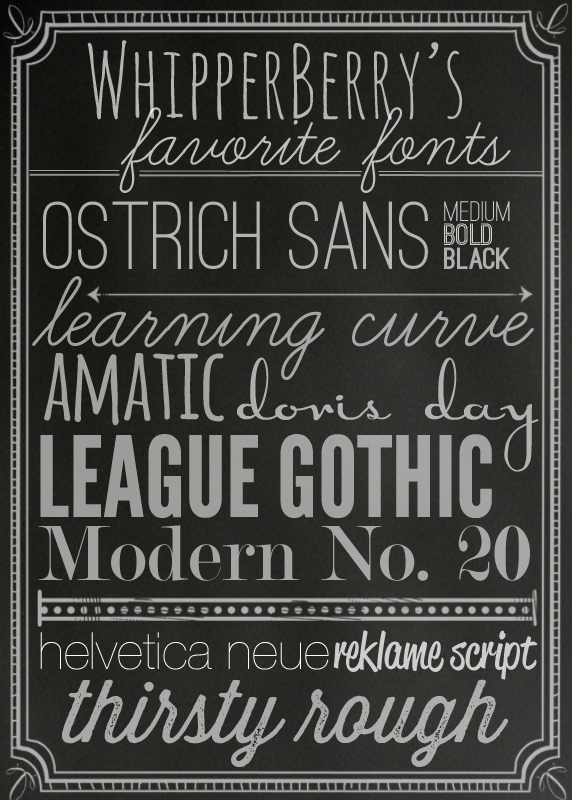
Here are a few of my favorite fonts right now. I tend to stay pretty simple and stick to just a few standard fonts. That way when people see my photos, they know… "that photo is from WhipperBerry."

WhipperBerry's Favorite Fonts

ostrich sans // learning curve // amatic // doris day // league gothic // modern no.20 // helvetica neue ultra light // reklame script // thirsty rough

Most of these fonts are free. You can download a free demo of Reklame Script that can get you by, and Thirsty Rough is $5, not too bad. 

Where to Find Good Brushes

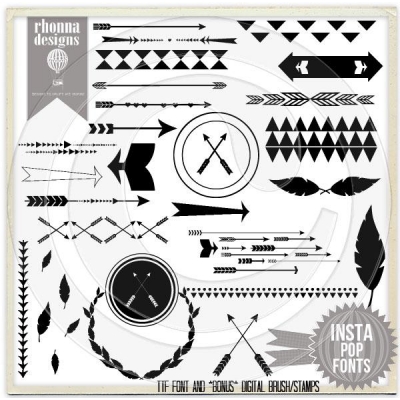
My go to gal for graphic elements is Rhonna Farrer the creator of Rhonna Designs. I have been a HUGE fan of her for some time. She has some amazing kits that you can purchase and then use to your hearts content. They come in a couple of different formats, so if brushes intimidate you, you can use the  png format. Here is the kit that I used for this post… InstaPop!

POPPREVIEWINSTA-400x400

Rhonna has a ton of fun kits, so you should go check them out. 

There you have it… How I add text and graphics to my images. If you have any questions, let me know. I would be happy to help! Leave a comment or email me, heather (at) whipperberry (dot) com and I can see what I can do.

Jessica Sprague Oh Shoot! Digital Photography Classes // GIVEAWAY

2 · Mar 5, 2013 · 145 Comments

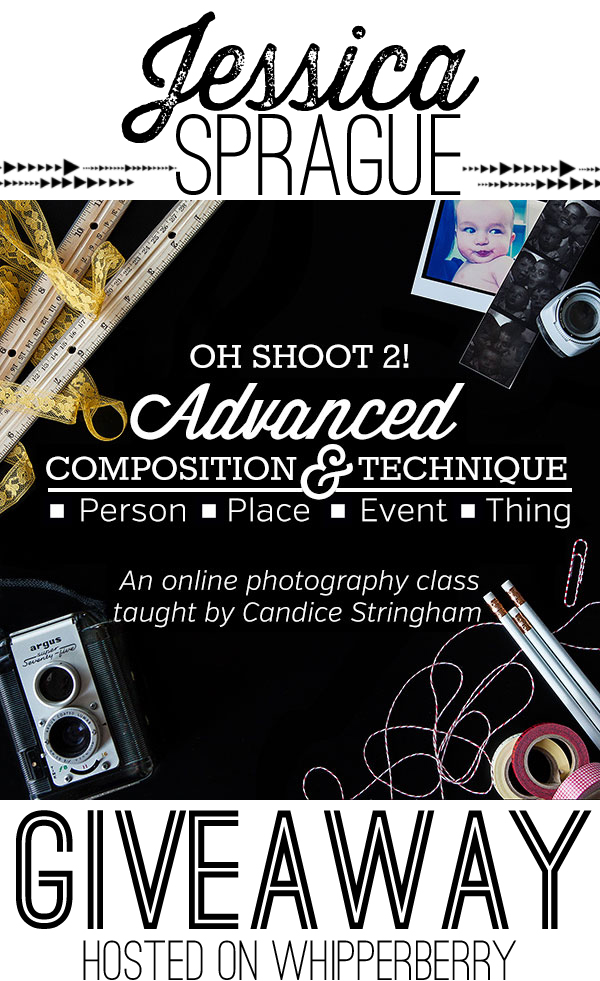
Digital Photography Class//  Last week, I posted about my faux slate (chalkboard) photo background and asked if any one was interested in more photography posts. The response was overwhelmingly YES!! It seems that many of you would love to learn more about everything from how to use your camera, all the way through staging, editing and preparing your images for your blog and especially Pinterest.

Well, I am thrilled to announce I am starting a new series to touch on all aspects of my photo process, tips and tricks that I've learned over the past two years of blogging. I, however, am NOT going to dive into the world of teaching you how to use your camera. I would have to spend hours and hours, days, weeks even… Developing posts that would do the subject justice. I am going to leave that to the professionals at Jessica Sprague. They have spent way more than hours and days on developing some amazing photography classes. They actually have a teacher, Candice Stringham, who went to school for years to learn how to be a photographer. She KNOWS HER STUFF!! Not only does she have a BFA in Photography they invited her back to TEACH photography at the collegiate level. Yea, she's legit!

Oh_Shoot__Beginn_4c605bb17466e

My first word of photography advice is… STOP USING AUTO friends!!! Oh Shoot! the beginning photography class at JessicaSprague.com is perfect to learn how to really use your camera. You won't believe the difference. This class will teach you how to do just that. You won't have to be scared of all those dials, buttons and numbers on your camera… It really demystifies your camera and the whole photo process. I took the class and actually learned several new things that I'm sooo excited to start incorporating into my photography. Oh Shoot! is perfect for beginners and even more advanced photographers. The nice thing is once you sign-up for the class, you will ALWAYS have access to the class material. You will be able to refer back to the material or take refresher class whenever you like for years to come. Most online photography classes don't have that available for their students indefinitely. That's just one of the many things that set Jessica Sprague apart from the rest. 

Each class has a video, MP3 of the class material and a PDF of the material. Below are a few snippet's from the first class on Shutter Speed…

Oh Shoot! Photo Class

All of the material is professionally created, easy to read and understand. You won't feel like they are speaking photography greek. The class is limited in number so you will feel like really are a part of a small group, rather than a little fish in a big pond. You will also have the ability to chat with your classmates and instructor via the online chats and email for even more personalized help. It really doesn't get any better than this, REALLY!

The 2013 session of Oh Shoot! starts on March 11th and runs through April 21st. It is an instructor led class, but don't worry… You will have access to all of the materials even if you can't make the live chats. This is truly a valuable experience that shouldn't be missed. The class is $130 and well worth the money. The spots are limited so run out and grab your seat for class TODAY!! I have one spot to GIVEAWAY to one of you, my favorite friends!! 

Jessica Sprague Oh Shoot! GIVEAWAY

All you need to do is follow the instructions in the Rafflecopter box below…

a Rafflecopter giveaway

this post sponsored by jessica sprague

DIY Faux Slate Chalkboard Photo Background

74 · Feb 26, 2013 · 103 Comments

DIY Faux Slate Chalkboard Photo Background // When I first started blogging, one of my main goals was to learn how to take good pictures. If you were to go back to the beginning of WhipperBerry from the summer of 2010, You can see my photos were not exactly Pinterest worthy. Luckily Pinterest hadn’t opened it’s virtual doors quite yet.

One of my favorite things about bloggin is that I am constantly learning and developing new skills. I am constantly dissecting photos that I love, to figure out how I can create the same effect.  Now, with Pinterest as a major player in our social media world… Photography is EVERYTHING. One of the easiest ways for a post to go viral these days is for it to be pinned and repined on Pinterest. A post can develop some strong legs on Pinterest and really bring in some major traffic for your site. The bottom line is… If you don’t have a good photo, you are missing a huge chunk of the successful blog post equation.

One of my favorite styles of photography right now is, the dark slate chalkboard look. We’ve seen it everywhere on Pinterest. Not only is this chalkboard look popular for printables, it’s super popular for pictures as well. Here are a few examples of photos that I’ve created for WhipperBerry with this look…

faux-slate-background-from-WhipperBerry

I love how the black backdrop helps to make colors pop and it also has a bit of texture which in turn helps the image have more depth. It also creates a fun chalkboard look when adding text to your image.  I just love it!!

Want to know how I made my background? It’s super EASY and cheap! Here is what you will need…

Supply List

  • Black foam board – Any size will work, I have a couple of sets of various sizes. They range in price from just a few dollars for a small board up to about $15 for a large 20×30 depending on where you purchase them. Still nothing to sneeze at when compared to other photo backdrops.
  • Chalk
  • Old rag

Chalkboard Photo Background Instructions 

Now, this couldn’t be easier. Take your foam board and a piece of chalk…

How to make a faux slate photo backdrop

Take the side of the chalk and gently rub circles around the surface of the foam board. Don’t press too hard, it will dent or scratch the surface of the foam board and you don’t want that to happen.

use chalk to create a faux slate photo background

Once you’ve covered the entire surface of the foam board with the chalk, take an old rag and use it to blend the chalk over the surface of the board. This will give the board the look of slate when photographed.

blend the chalk on the foam board with an old rag

Here’s how it should look once you’ve blended the chalk…

the finished faux slate board

Because they are so inexpensive and easy to make, I’ve made several of them of them and use them for not only the background but the base of my photo set-up. I’ll let you in on a little secret, Here is how I photograph all of my photos…

How to use the faux slate photo background

This is actually my daughter’s bedroom, but she has graciously offered to share it with me as my photo studio as well. It has the best natural light in the house and with windows on two sides of the room I have all kinds of fun playing with the light. This set-up was for yesterday’s Campbell’s post, here is how the picture turned out…

Address your heart with Campbell's Soup

I am just in love with this look right now! So… I’ve been thinking about doing a few more posts on how I create the images for WhipperBerry, but I’m going to leave that up to you. If you are interested in more posts like this, leave a comment on this post and tell me what you would like to learn about. If there is enough interest, I will work up a whole new blogging series… So ask away!

  • « Go to Previous Page
  • Page 1
  • Page 2
  • Page 3
  • Page 4

Primary Sidebar

Heather from Whipperberry
Hello... my name is Heather and I'm the creator of WhipperBerry a creative lifestyle blog packed full of great recipes and creative ideas for your home and family. I find I am happiest when I'm living a creative life and I love to share what I've been up to along the way... Come explore, my hope is that you'll leave inspired!

Footer

  • Privacy Policy
  • Crafts
  • Food
  • Gifts
  • Holidays
  • Home
  • Mom Life
  • Recipes
  • Travel

Copyright © 2026 · Seasoned Pro