• Skip to primary navigation
  • Skip to main content
  • Skip to primary sidebar
  • Skip to footer

Whipperberry

WhipperBerry • Your Home For Creative Inspiration

  • Home
  • Recipes
    • Starters
    • Easy Weeknight Dinners
    • Main Dish
    • Salads
    • Side Dish
    • Soups & Stews
    • Desserts
    • Breakfast
    • Miscellaneous
  • Tutorials
    • Creative Crafts
    • DIY Decor
    • Fabric Crafts
    • Food How-To
    • Jewlery
    • Paint Projects
    • Paper Art
    • Party Styling
    • Photography and Graphic Design
    • Silhouette
  • Holidays
    • Easter
    • Mother’s Day
    • Father’s Day
    • 4th of July
    • Halloween
    • Thanksgiving
    • Christmas
    • Valentine’s Day
  • Gift Ideas
    • Gifts For Everyone
    • Gifts for Dad
    • Mother’s day
    • For The Girls
    • For The Kids
    • Teacher Gift Ideas
    • Christmas
  • Printables
    • Holiday
    • Gift Idea
    • LDS Primary
  • Travel
  • About
    • Terms
  • Contact
  • Nav Social Menu

    • Facebook
    • Instagram
    • Pinterest
    • RSS
    • Twitter

Cricut

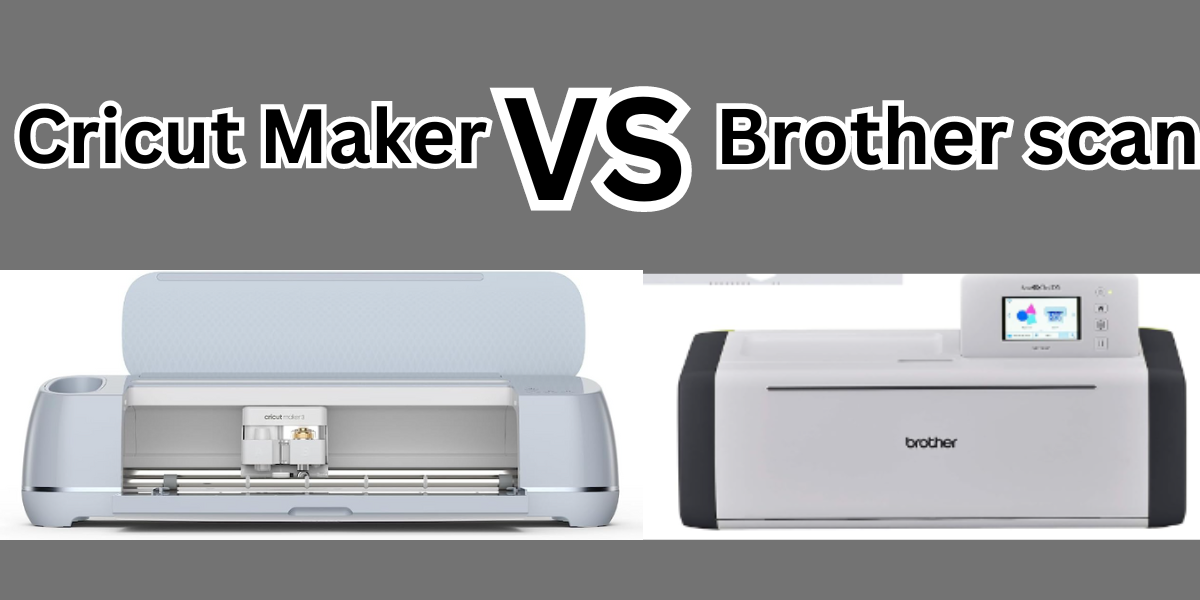
Cricut Maker vs Brother Scan and Cut – Which it’s Better?

43 · Dec 2, 2023 · Leave a Comment


Are you wondering about choosing the right crafting and cutting machine? No worries I have got you covered.

To help you decide without having to purchase and test each one, I’ve taken the initiative to compare different cutting machines against their close competitors.

My goal is to give you a clear understanding of what each machine offers, so you can pick one that best fits your crafting needs and budget.

By the end of this comparison, you should have all the information needed to make a well-informed choice.

Diving right into our guide, I’ll compare the capabilities of the Brother Scan and Cut with the Cricut Maker, both of which are popular choices among cutting machines.

For those in a hurry and not looking to read the entire review, we’ll reveal the winner upfront: it’s the Cricut Maker.

However, we recommend exploring the full review to understand the distinctive features that set these two machines apart and how they measure up against each other.

I’ll explain why Cricut Maker stands out, giving you a clear picture of its advantages.

If you guys are interested in knowing about Cricut vs Silhouette, click here to get more information.


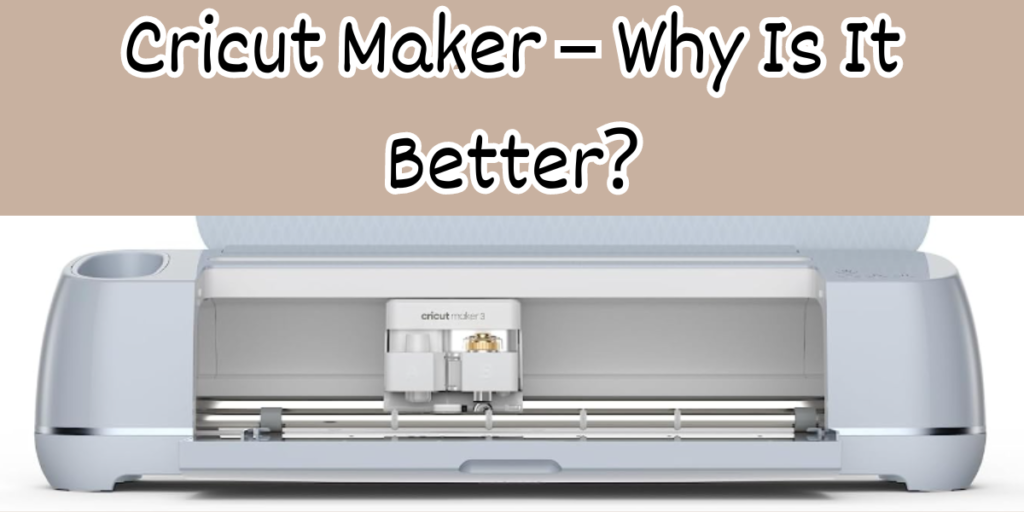
Cricut Maker – Why Is It Better?


The Cricut Maker stands out for several reasons:

  • User-Friendly: Its software is easy to navigate, making the learning process smooth.
  • Adaptable: Suitable for both advanced crafters and beginners.
  • Material Compatibility: Capable of handling over 100 different materials, including leather, vinyl, fabric, and paper, with high precision.
  • Versatility: Ideal for a wide range of projects, from card making to T-shirt designs.
  • Efficiency: Features a 2x speed boost for quicker project completion.
  • Cost-Effective: The machine and its accessories are affordably priced.
  • Ready-to-Use Designs: Offers a vast collection of premade designs and fonts for various projects.


Brother Scan and Cut vs. Cricut


When comparing the Brother ScanNCut and the Cricut Maker, each offers unique features suitable for different crafting needs.

The Brother ScanNCut SDX125E stands out with its built-in scanner, allowing for direct design cutting and a focus on textile projects.

It’s versatile and ideal for small workspaces without a computer. The Cricut Maker, known for its robust tool selection and precision in cutting a variety of materials like wood and leather, is tailored for intricate and diverse projects.

It boasts user-friendly software with extensive online support. While ScanNCut excels in standalone operation and textile handling, the Cricut Maker offers greater power and material versatility, making it suitable for more demanding crafting tasks.

The choice depends on whether you prioritize standalone functionality and textile projects (ScanNCut) or require a wider range of tools and material handling (Cricut Maker).


Which are the Applications For Cricut Maker & Brother Scan?


The applications for these 2 machines are different and I’ll show you why. Cricut uses the “Design Space” application, while Brother ScanNCut utilizes the “Canvas Workspace” software.

Design Space, compatible with iOS, Android, Windows, and Mac, is known for its user-friendly interface and extensive online support.

It requires internet connectivity and offers a wide variety of projects, with some available for free and others accessible to subscribers.

Canvas Workspace, on the other hand, allows for offline work and is ideal for those who prefer not to rely on internet connectivity.

It supports the creation of projects from scratch and is compatible with Windows, Mac, and as a web application.


Which One Has the Strongest Cutting?


The strongest of these two machines is totally Cricut Maker and I’ll tell you why.

The Cricut Maker has a stronger cutting force compared to the Brother ScanNCut machine.

Specifically, the Cricut Maker boasts a maximum cutting force of 4,000 grams, enabling it to efficiently cut through a wide range of materials, including denser and thicker ones like balsa wood, linden wood, leather, chipboard, and laminates.

In contrast, the Brother Scan’s maximum cutting force is 350 grams, which is more suited for lighter materials and not as powerful as the Cricut Maker for heavy-duty tasks.


Which Can Cut Thicker Materials Between the Cricut & Brother Scan?


Between the Cricut Maker and the Brother ScanNCut, the Cricut Maker has a slightly lesser material thickness capacity, handling materials up to 2.4 mm thick.

In contrast, the Brother ScanNCut can cut materials up to 3 mm thick, giving it an edge in handling slightly thicker materials.

Therefore, if your projects involve cutting thicker materials, the Brother ScanNCut would be the more suitable choice


Which Has a Faster Cutting Speed Between Cricut & Brother Scan?


The fastest of these machines is undoubtedly the Cricut Explore Air 2, known for its superior cutting speed compared to the Brother ScanNCut.

It’s known for being super fast, which is cool when you need to get your project done quickly.

The Brother ScanNCut has some awesome features too, like scanning stuff in, but when it comes to speed, the Cricut Explore Air 2 is the champ.

So, if you’ve got a bunch of stuff to cut and not a lot of time, the Cricut Explore Air 2 is the way to go


Brother Scan and Cut vs. Cricut Maker – Conclusion


Overall, both machines excel in their capabilities, but in areas like cutting force, size, and speed, the Cricut Maker 3 tends to have an edge over the Brother Scan and Cut 2.

In my experience, I think that Cricut Maker is better, but Brother Scan it’s also very good. Make sure to get the one that covers your needs and your projects.


Up next, I’ll be answering some of the most frequently asked questions about these machines.


What surpasses Cricut Maker?

Silhouette Cameo 4 competes closely with Cricut Maker, excelling in cutting force, size, and material clearance.

Custom images on Cricut Maker?

Yes, Cricut Design Space allows the use of custom images with Cricut machines, supporting SVG files for free.

Brother Scan and Cut 2 vs Cricut Explore Air 2?

While comparable, Cricut Explore Air 2 edges out with lower costs and an easier learning curve.

Creating your designs with Cricut?

Cricut Design Space enables you to create custom designs for Cricut machines.

Best Cricut machine to buy?

Currently, Cricut Maker 3 is the top choice, offering high cutting force, speed, and affordability.

Best machine for cutting vinyl?

Both Cricut Maker 3 and Brother Scan and Cut 2 are suitable for cutting vinyl, but Cricut is more cost-effective.

Comparing Silhouette Cameo, Cricut Maker, and Brother Scan and Cut:

Silhouette Cameo and Cricut Maker lead in performance, but Brother offers unique features like a built-in scanner.

Activation card for Cricut?

No activation card is needed for Cricut, but Brother ScanNCut requires one for wireless connectivity.

Brother Scan and Cut 2 vs Cricut Maker 3 and Silhouette Cameo 4?

Despite its scanner and LCD screen, Brother Scan and Cut 2 lags behind the other two in cutting capabilities.

Cricut vs Silhouette – What’s the Difference? (2024)

572 · Dec 25, 2022 · 57 Comments

Just about any crafting enthusiast has heard of Cricut or Silhouette brand cutting machines. These machines have revolutionized the world of DIY crafts, giving anyone the ability to create custom vinyl decals, cards, home and party decorations,  t-shirts, and so much more. They’re invaluable for independent artists and small business owners as well. 

Key Takeaway for Cricut vs Silhouette

Cricut is the winner for me. I’ve been a crafter for 20+ years now and I’ve used both extensively. If you’re short on time then just get the Cricut. If you want to know why then read this full article.

Get It Here

The two main manufacturers of these machines are Cricut and Silhouette. There are numerous similarities and differences between these two brands. Is one brand “better” than the other?

This article is going to take you through a comparison, and hopefully, it will help you decide if one or the other is right for your crafting needs.

Cutting Machines: What Can They Do?

The name “cutting machine” seems like an overly simple description for the capabilities of these machines. Both the Silhouette and Cricut machines cut a variety of materials with precision cutting blades.

You can create decals and labels using vinyl, and make customized cards for any occasion with a variety of card stocks and papers. With heat transfer (iron on) vinyl, you can add your own designs to t-shirts, towels, hats, jackets, and just about any clothing item.

Using sublimation paper or pens, you can transform plain mugs and water bottles that are perfect for yourself or as gifts for your friends and family. Some of the cutting machines can even cut thicker materials like bonded fabric, craft foam, felt, and balsa wood. You can use a machine like the Cricut mug press to put images and labels on mugs.

Really, once you start using a Cricut machine or Silhouette machine, your imagination will go into creative overdrive!

Get It Here


Cricut vs. Silhouette Machines: A Basic Comparison

Before getting into the details of what makes Silhouette and Cricut so different (or the same) from each other, here’s a brief comparison of the cutting machines available from each company. 

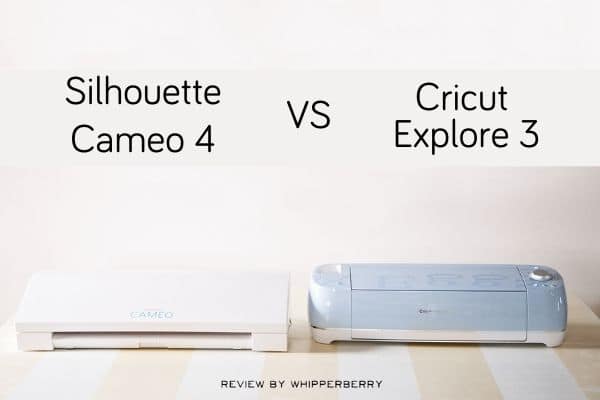
There are currently two Silhouette models of cutting machines being sold on their website: the Cameo 4 and the smaller Portrait 3. 

On the Cricut website, you’ll find more models available; the Cricut Explore Air 2, Cricut Explore 3, the Cricut Maker, Cricut Maker 3, and the smaller Cricut Joy.  

For the purposes of a fair comparison, we’ll compare the Silhouette Cameo 4 against the Cricut Maker 3. Both of these are the top of the line machines, with the widest varieties of cutting capabilities.

Let’s take a more in-depth look at the similarities and differences of these two machines, beginning with the Silhouette Cameo 4.

Silhouette Cameo 4:

The Silhouette Cameo 4 is available in three sizes; 12 inch width, 15 inch width, and a large 24 inch wide machine. It’s nice to be able to choose machine size based on your crafting space and project needs. The larger sizes are marketed more towards professional designers and small business owners. The features on all three sizes are basically the same.

When you purchase a Silhouette Cameo, here is what is included:

  •  The Silhouette Cameo 4 machine
  •  power cable and a USB cable
  •  a 12-inch by 12 inch Cameo cutting mat
  •  AutoBlade
  •  Adapters for the standard blade, premium blade, deep-cut blade, 2mm Kraft Blade, and for the Silhouette sketch pens.
  •  One month Silhouette Design Store subscription (once you register your machine
  • Free version of Silhouette Studio software, with 100 free exclusive designs (available for download)
  •  Warranty information: one-year parts and labor, limited to USA and Canada only.

The Silhouette Cameo 4 has a sleek, angular design that is going to look good in any craft room. The controls on the machine are a small touch screen that disappears when not being used. The twelve-inch width Cameo 4 model weighs approximately eleven pounds, which is slightly less than the weight of the comparable Cricut Maker.

Silhouette Cameo 4: Cutting Features 

The Cameo 4 can cut approximately 100 materials, including a variety of specialty papers, cardstocks, adhesive vinyls, heat transfer materials, specialty materials such as magnet sheets, lightweight wood sheets (such as balsa wood and chipboard), vellum, transparencies, fabrics, craft foam, and faux leather.

The maximum cutting depth for this machine is 3mm, which is more than adequate for heavier specialty materials. This machine has an impressive cutting force of 5 kg.

That’s a full kg more than the Cricut Maker 3. While that much cutting force is great if you’re going to primarily use your Cameo 4 for heavier materials such as fabric, craft foam sheets, and faux leather, it really doesn’t make any difference if your projects will primarily involve cutting vinyl, cardstock and iron-on materials.

Keep in mind that having extra cutting force isn’t always a better option. If your project involves cutting complicated designs on thicker materials, using less cutting force with several passes might give you cleaner, more precise cuts. 

It’s important to note that you’ll need to purchase the Kraft Blade or Rotary Blade to successfully cut any thicker materials.

You’ll also need to purchase a separate Pen Holder if you want to use pens or markers to draw or write on any of your projects.

The pen holder is nice, especially since it has adapters that will allow use of pens other than the Silhouette brand. However, the Cricut Maker has a dual carriage feature that doesn’t require the purchase of a separate accessory to use their pens.

The Cameo 4 does have a few nice features that the Cricut Maker doesn’t have. One of the most prominent is the built in roll feeder.

With the roll feeder, you can attach your roll of vinyl directly to the machine, and it will feed directly into the cutting area. This allows you to cut materials such as vinyl, sticker sheets, and heat transfer vinyl without using a  mat. When using the feeder, you have a potential continuous cutting length of 10 feet!

On the back of the Cameo 4 is a built in “cross cutter” that allows you, after cutting your project without a mat, to trim your material right off the roll after the machine is done cutting.

Another nice cutting feature is the “pop out” cutting setting that will allow you to cut cardstock and papers without having to use a cutting mat.

When making “pop out” cuts, the Cameo will occasionally lift the blade, leaving tiny portions of the design uncut so your design will still be connected to your paper or cardstock. Essentially, it creates perforations on your project instead of cutting it out. 

Once you are done cutting, you simply “pop” the cut piece out of your material! Cricut machines also have this capability, but you have to use a separate “Perforation Blade” for this function.

It should be noted here that while the feeder makes cutting large projects much easier, it doesn’t work as well if your project has smaller, more intricate designs.

Cutting on a mat will give you better stability and control for making fine cuts. The “pop out” cuts are also nice for larger, more simple shapes, but the cut lines don’t always turn out perfectly smooth, and again it doesn’t work quite as well for intricate designs. 

There is one more consideration when buying any cutting machine, and it’s something that usually doesn’t come to mind until you’ve already made your purchase and are trying out your new machine.

I’m referring to the noise level. There truly isn’t any such thing as a silent cutting machine. All makes and models will operate with some level of noise. The Silhouette Cameo 4 is loud.

It’s not so loud that you won’t be able to hear a nearby television or music playing, but you’ll probably need to turn up the volume a bit more than you normally would.

The Cricut Maker, comparatively, isn’t silent by any means; but it’s not as noisy as the Cameo 4. If you need a relatively quiet space to do your crafting, this is something you might want to give serious consideration to.

Let’s take a look at the basic functions of the Cricut Maker 3 now, and see how it compares to the Cameo 4.

Cricut Maker 3:

The Cricut Maker 3 is the top-of-the-line model of Cricut cutting machines. It has the ability to cut over 300 different materials, and is compatible with 13 different specialized tools. With the variety of Cricut tools and blades available for the Cricut Maker 3, you can cut, score, deboss, write, draw, and even engrave.

When you purchase a Cricut Maker 3, here is what is included

  • Cricut Maker 3 machine
  • Premium Fine-Point Blade and Housing
  • USB cable and power adapter
  • Welcome card, with instructions on how to register your machine online and get started
  • Free 30-day trial subscription to Cricut Access (for new subscribers)
  • Access to 100 ready-to-make projects with your trial subscription to Cricut Access
  • Sample material to do a practice cut.
  • Information on the One-Year Limited Warranty


The Maker 3 is a nice-looking machine, with rounded corners and it is available in several colors. The overall design is very “crafter friendly”, with a storage cubby for your small tools such as tweezers, scissors, pens, and the weeding tool. On top, you’ll find a handy slot that acts as a holder for your phone or tablet. The Cricut Maker is a solid machine that weighs 15.4 lbs.

Get It Here

Cricut Maker 3 Cutting Features

The Cricut Maker 3 can cut over 300 different materials. In addition to an assortment of specialty vinyl, cardstock, and iron-on materials, it also easily cuts leather, balsa wood, bonded fabric, foam board, vellum, transparencies, and more. It has a maximum cutting depth of 2mm and a maximum cutting force of 4 kg.

Both of those are slightly less than the power of the Silhouette Cameo 4, but the Cricut Maker 3 still does an outstanding job at cleanly cutting heavier specialty materials.

One thing that makes the Maker 3 stand out against other cutting machines is its versatility. While there are nine specialty tools and blades available for the Cameo machine, there are 13 different blades and tools available for the Maker 3. In addition to the assorted knife blades and pens that both machines feature, with the Cricut Maker 3 you can also purchase a foil transfer tool, a bonded fabric tool, a scoring stylus or wheel, an engraving tool, debossing tool, a wavy blade, and the perforation blade. 

These specialty tools bring so much versatility to your crafting experience, but you will probably find yourself using one of the simpler Cricut tools more than anything else; the scoring stylus.

The scoring stylus, or a scoring wheel if you prefer, really is essential if you use your Maker 3 to make greeting cards or paper crafts of any kind. It’s a blunt tool that creates a slightly creased line anywhere you need to fold on your cut piece. With the scoring stylus, you’ll get a perfectly straight, precision fold without weakening your finished project.

Unfortunately, the Silhouette machines don’t have a comparable scoring tool. Instead, there is a “score” option in their design software, but it doesn’t truly score your paper. Instead, the blade will perform a very light cut, only halfway through your cardstock or paper, anywhere you want a fold line. It works perfectly fine, but because it’s a partial cut it does weaken your material a little bit. 

The Cricut Maker 3 does have the ability to cut some materials without the use of a mat. You can do this by using Cricut brand Smart Materials.

Smart Materials come in a roll with a slightly heavier backing on them. It’s easy to load any smart material into the machine, and they cut beautifully.

Because the backing is slightly heavier than Cricut’s “regular” materials, you can successfully cut more detailed designs with Smart Materials. 

Using Smart Materials can save time, also. If you’re making a large number of vinyl decals or custom t-shirts, for example, you can cut them more quickly without having to switch out mats. Just load your roll of vinyl or heat transfer Smart Materials into your Cricut Maker and you can cut them all in no time! 

When using Smart Materials, you can cut a continuous length of up to 75 feet! If you use your Maker 3 for vinyl cutting to create classroom or outdoor decorations, the ability to cut long pieces makes the work so much easier.

While the Maker 3 doesn’t have an attached feeder and cross-cut trimmer like the Silhouette Cameo, you can purchase a roll feeder accessory with an attached trimmer separately. Unless you are cutting Smart Materials in very long lengths, you might not even miss having the feeder.  

Get It Here

Cricut Design Space vs. Silhouette Studio Software

By now, you’ve probably realized that when it comes to basic cutting functions, there are more similarities than differences between the Silhouette Cameo 4 and the Cricut Maker 3. The real differences between these two machines comes down to the software. You can’t operate either brand of machine without the required software or app, and while both Silhouette Studio and Cricut Design Space are good programs, there are some notable differences. 

Silhouette Studio Software

Silhouette Studio Software is Silhouette’s software to create projects & send them to your cutting machine. If you’re familiar with graphic design programs, you probably won’t have much trouble learning to use the Silhouette software.

If you’re unfamiliar with such programs though, you might find it has a steep learning curve at first.

SIlhouette’s software is a desktop-only application; compatible with Windows and Apple operating systems. However, it isn’t compatible with Chromebooks, tablets, smartphones, or any mobile devices. This is a big drawback for crafters who like to use their ipads with their cutting machines. There is a free mobile app called “Silhouette Go”, that allows you to access the designs in your Silhouette library and send them to your cutting machine, but it doesn’t give full access to all the design features.

The Silhouette software has some advanced features available, such as a freehand drawing tool, and a “trace” tool, that isn’t available with Cricut Design Space software. However, you need to purchase one of the paid versions of the software to access these tools.

Silhouette’s software has a total of over 60 design tools, depending on which version of the software you are using. There are four different tiers of Silhouette Studio; let’s take a look at how they compare to each other.

Versions of Silhouette Studio Software

The Basic Edition (Free!), gives you access to ready-made images and projects from the Silhouette Design Store, the ability to work with fonts installed on your computer, the ability to import JPG and PNG images and convert them to “cut and print” designs, use of some design tools to create your own projects, and of course you can send your projects directly to your Silhouette machine.

The next tier of Silhouette Studio Software is the “Basic to Designer” Edition, with a cost of $49.99. With this edition, you get all the features in the free software version, plus rulers and grids to help align your design work and (most importantly) the ability to import and work with SVG and PDF files.

The “Basic to Designer Plus” Edition is the next level, with a cost of $74.99. In addition to all the features in the lower tiers, you’ll also be able to import and work with embroidery file types, and have access to even more design tools.

Finally, the highest tier of Silhouette’s software is the “Basic to Business” Edition, with a price of $99.99. This level really is geared towards professional graphic designers or small business owners. In addition to the features of all other software packages, the “Basic to Business” edition allows you to export your SVG, PDF, and JPG designs, import Ai, CDR, and EPS files, and work with multiple cutting machines at once with the multi-cutter support feature.

All of these costs for the Silhouette software are for a one-time purchase. Additionally, there is a subscription option for the Silhouette store. With the service, you pay a monthly fee to purchase “credits” that you can use in the Silhouette store to buy SVG images and project files. 

There are different subscription levels, with the base level being $4.99 per month for 10 credits. Each credit is worth one U.S. dollar, and there is a 60-day credit rollover. After 60 days, any unused credits you have in your subscription will expire. It’s hard to say how many files you can purchase with 10 credits per month since the files vary in price. 

Get It Here

Silhouette Studio Software: Do I Need The Paid Version?

If you’re only an occasional crafter or aren’t familiar with using a graphic design program, you can probably get by with the free or the next tier “Basic to Designer” version. You can always start out with the free version, and upgrade to any of the paid versions later. 

It’s important to note that the free version of Silhouette Studio greatly limits what files you can access and use. Most projects for cutting machines use SVG (scalable vector graphics) files. These files are easy to modify and allow you to resize without losing any clarity. 

There are plenty of great SVG files in the Silhouette Design Store (both free and available to purchase), but you won’t be able to import any SVG files from outside unless you buy the $49.99 software version.

This means that if you create your own SVG custom designs in a drawing program such as Adobe Illustrator, you won’t be able to import them to use with your Silhouette cutting machine using the free software version. There are also a lot of wonderful independent designers who sell their SVG files on websites such as Etsy, and again you’ll need the paid Silhouette Studio software to be able to use these files. 

There is an add-on app called “Silhouette Connect” that will send your artwork from Adobe Illustrator and CorelDraw directly to your Silhouette cutting machine. This makes it easy to create “print and cut” stickers of your own original designs. The Silhouette Connect add-on has a price of $19.99.

The subscription service to purchase files from the Silhouette website is affordable but limiting. There’s no good way to know if you would use all the credits you have in your account before they expire, and it’s hard to say how many files you can purchase each month with varied prices.

Cricut Design Space Software

Design Space is the software program used to create projects for your Cricut cutting machines. It doesn’t have as many of the advanced graphic design elements as Silhouette Studio, but most crafters find it much easier to navigate. Most of the functions are fairly intuitive, and there are also easy tutorials on the Cricut website.

The desktop version of it works well with both Windows and Apple operating systems. Unfortunately, Design Space isn’t yet compatible with Chromebook operating systems. In addition to the desktop software, there is also an app for mobile devices. The Design Space app does more than just send projects to your cutting machine. It can perform almost all the functions of the desktop software!

Design Space is free for all Cricut users. You get all the design tools and features with the free version. This means that you can easily upload any SVG file from an outside source to use with your Cricut machine.. If you use graphic design software, such as Adobe Illustrator, you can upload your artwork to your Design Space library without the need of any add-on applications. 

Get It Here

Versions of Cricut Design Space Software

With the free version of Design Space, you have unlimited access to approximately 1,000 images and over 250 ready-to-make projects, unlimited use of 15 fonts, the ability to purchase SVG files and projects a la carte from the Cricut website, and the ability to create up to 5 collections in your Design Space library.

There is also a monthly subscription option for Cricut’s Design Space, known as Cricut Access. With a reasonable cost of $9.99 per month, the Access subscription gives you unlimited use of over 200,000 images (this includes the images you have to pay for “a la carte” with the free version), unlimited use of 700 fonts, 10% off the purchase of licensed character SVG files, access to thousands of ready-to-make projects, and the ability to create an unlimited number of collections in your Design Space Library.

Additionally, the Access subscription includes a quarterly $10 coupon for purchases made on Cricut.com, 10% discount on purchases made on cricut.com, and Priority Member Care if you need customer service assistance.

Get It Here

Cricut Design Space: Do I Need The Paid Version?

The free version of Design Space will allow you to use all of the software’s functions. You can use the design tools, upload files from outside the Cricut website, and create new designs all for free! 

The only “extra” optional cost would be if you choose to subscribe to Access.

This subscription gives you unlimited use of almost all the images you would have to otherwise pay for individually. 

Even if you choose not to subscribe right away, the images and project files are very inexpensive; usually between $1 and $3.

At the price of $9.99 per month, the subscription is a bargain if you find yourself wanting to purchase many files from the website. You always have the option to upgrade to an Access membership at any time.

The savings benefits are a great perk for Access subscribers, also. In addition to the usual 10% discount from their website, Cricut also offers “Access Exclusive” sale items for subscribers. These deals are great, and it would be hard to find better prices for some items.

Get It Here

Cricut vs. Silhouette: What Do They Cost?

A big deciding factor in choosing to buy a Cricut or Silhouette machine is going to be the cost. Both the Cricut Maker and the Silhouette Cameo are considerable investments in your crafting hobby.

Fortunately, both the Silhouette or Cricut machines can be purchased not only from their respective websites, but also from craft stores and even Amazon.com. It’s worthwhile to check for sales from all of these sources. 

The regular price for the Cricut Maker 3 is $429.99. Of course, you’ll want to purchase materials and accessories to get started crafting right away. Fortunately, you can buy “bundles” on the Cricut website that offer a cutting machine, basic accessories, and an assortment of materials at a discounted price. 

The Silhouette Cameo 4 (12 inch model) has a regular retail price of $299.99. Silhouette does occasionally offer bundles similar to what is sold on the Cricut website, but not on a regular basis. 

Accessories and materials for both machines are comparable in price, and they do frequently go on sale. Fortunately, you can take advantage of sale prices no matter which machine you own.

Cricut materials (with the exception of their “smart materials” will work in a Silhouette Cameo machine, and Silhouette materials work great in Cricut machines. There are a number of third-party brands of vinyl and heat transfer materials that work in any cutting machine, too. 

In addition to the base price of the machines and materials, you should also factor in the cost of software and subscription services offered by Silhouette or Cricut.

Cricut software is free, easy to use, and has a wide variety of design tools. You don’t have to pay any extra to upgrade for more functionality.

Given how very limited the free version of the Silhouette design studio software is, most crafters will need to pay for the $49.99 Designer Edition. If you enjoy creating graphic designs in programs like CorelDRAW, you’ll also need to purchase the add-on app for your Silhouette Cameo.

For $9.99 a month, an Access subscription will give you unlimited use of thousands of files, compared to the basic $4.99 Silhouette store subscription that gives you 10 “credits” (a $10 value) that expire after 60 days. 

Get It Here

Conclusion: Silhouette vs. Cricut

Both the Silhouette Cameo 4 and the Cricut Maker 3 have their strong points.

For overall ease of use, reliability, and versatility, it’s our opinion that the Cricut Maker 3 is the overall better choice in the “Cricut vs. Silhouette” debate. 

The Silhouette Cameo and Cricut Maker cutting machines are both quality additions for your crafting needs. When it comes to basic functionality in the Cricut vs. Silhouette debate, the two cutting machines are more alike than they are different. Either machine is a good choice, but it really depends on the type of crafts you’ll use the cutting machine for, and how comfortable you are with the learning curve to get comfortable with the enclosed software.

Get It Here

Most User Friendly: Cricut!

If you’re investing in a quality cutting machine, ease of use is probably a big priority. No one wants to spend huge amounts of time and materials just learning to use their machine! With its comprehensive software and excellent online tutorials, anyone can start creating with their Cricut cutting machine almost immediately. 

The larger variety of specialty tools available for the Cricut Maker makes this a much more versatile machine when compared with the capabilities of Silhouette’s cutting machines.

Tools like the rotary blade for cutting bonded fabric, or the foil transfer kit to add shiny accents to your project elevate your crafting capabilities far beyond paper crafts and vinyl cutting.

Best Software: Cricut Design Space

The biggest difference between Cricut Maker 4 and Silhouette Cameo 3 really comes down to the software options. Both software are easy to initially set up. They both have Bluetooth connectivity, which means you’ll need a decent internet connection to use them. 

The ability to use any SVG file or even your own images with the free Cricut design software solidifies our preference for the Cricut Maker, especially since you’d have to pay for a premium version of the Silhouette design studio software to do this.

If you’re comfortable with other graphic design programs, you’ll probably love Silhouette Studio. If you’re more of a beginner when it comes to using any design software, you’ll probably feel a little frustrated with the time it takes to learn it, though.

Comparatively, Cricut Design Space has a lot of great functions that are easy to learn. The Cricut software was designed with the home crafter in mind, making it one of the more user-friendly design programs you’ll ever find.

The free Design Space mobile app that allows you to use your machine from a smartphone or tablet gives Cricut a considerable edge over Silhouette. As long as you have your mobile device handy and an internet connection you can work on your craft projects!

Best Overall Value: Cricut

While the Cricut Maker 3 is a more expensive machine than the Silhouette Cameo, it is a sturdy piece of equipment with a reliable reputation. Cricut.com frequently has sales on their machines, and the bundled deals with accessories and materials are a great bargain.

Get It Here

The Silhouette Cameo 4 machine costs slightly less than the Cricut Maker. While Silhouette frequently has sales for their products, usually bundled deals that include tools and materials along with your new Silhouette Cameo machine aren’t available.

By the time you’ve purchased a new Silhouette Cameo and basic tools and materials to get started, and possibly a premium version of their software, you may end up spending the same amount of money (or slightly more) than if you had bought a Cricut Maker.

The Silhouette Cameo isn’t as widely sold in as many craft stores as the Cricut machines, so if you don’t want to buy directly from their website you might have trouble finding one in person. 

If you’ve been mulling over buying a Cricut vs. Silhouette machine, hopefully, this article helped to clear up some of the significant differences between these two machines.

If you’re still undecided, there are of course many online videos and reviews that address the Cricut and Silhouette comparison as well.

Both the Cricut Maker and Silhouette Cameo have their loyal users and deciding which option is right for you really depends on what type of crafter you are, and how you’ll use your machine. With either cutting machine, you’ll find yourself spending many enjoyable hours in your craft room, creating beautiful projects for yourself and others.

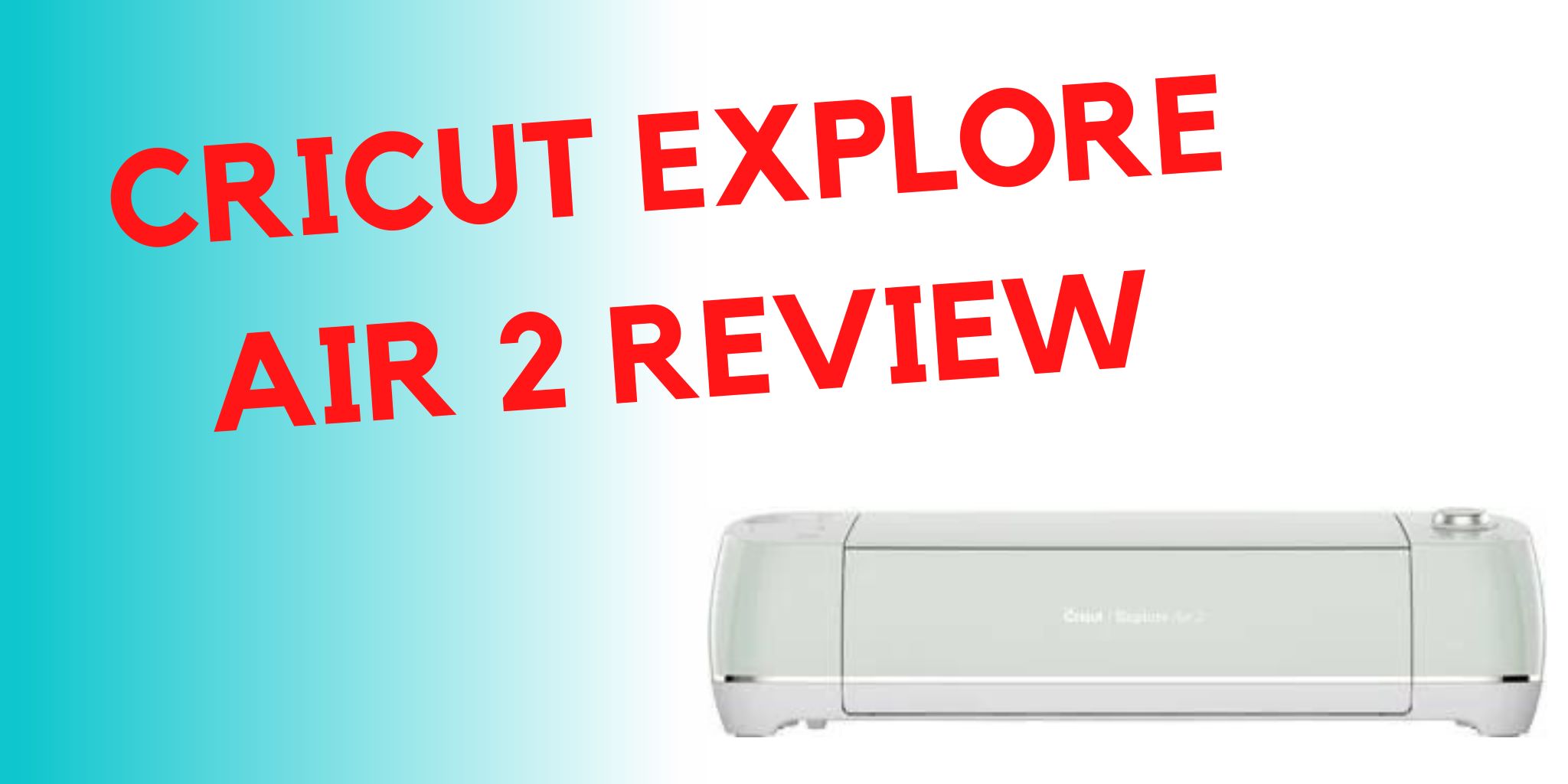
Cricut Explore Air 2 Review – Is it Still Good? (2024)

8 · Dec 25, 2022 · Leave a Comment

The Cricut Explore Air 2 is the most popular machine in the Cricut brand of cutting machines, according to their website. It’s a popular choice for crafters, with the capability to create unique greeting cards, party decorations, custom t-shirts, home decor, and so much more. 

This machine can cut over 100 different materials, such as cardstock, adhesive vinyl, iron-on, glitter paper, window cling material, faux leather, and others. It can even cut some fabrics; perfect for anyone who enjoys sewing and quilting.

The Cricut Explore Air 2 is impressive right out of the box. It comes in a variety of attractive colors, in case you want the machine to complement your craft room decor.

It’s a fairly large machine, measuring 24″ wide by 9.5″ tall, with a depth of 9.5″. It weighs approximately 12 pounds.  Because this is a large, somewhat heavy machine, you’ll want to set it up on a strong stable surface. 

Short Verdict of this machine…

Get it instead of the Cricut 3. The Cricut Air 2, especially the bundle, is the way to go.

What Does the Cricut Explore Air 2 Come With?

When you purchase an Explore Air 2, you’ll get the following:

  • The Explore Air 2 machine
  • Premium Fine-Point Blade + Housing to hold the blade
  • A fine-point black Cricut pen
  • 12” X 12” LightGrip Cricut Machine Mat (this is suitable for most cutting projects)
  • USB cable and power adapter
  • Cricut Welcome Book and start-up instructions
  • Materials for a small practice project
  • One Year Limited Warranty information
  • Free trial membership to Cricut Access


The included Welcome Book outlines the basic features of the machine and what it can do. It also has a useful quick reference guide with easy-to-follow instructions and illustrations.

Of course, to start crafting with your machine you’ll need to purchase more materials, and maybe a few basic accessories. Instead of trying to decide what supplies you need to buy separately, Cricut sells this machine in a couple of different bundled packages that include a variety of materials and tools. These bundle packages are a great value, and you’ll have what you need to start creating right away.

Cricut Explore Air 2 Features

The Explore Air 2 is a versatile machine, with wide capabilities. Here are the Explore Air 2’s basic features:

Versatility

The most prominent feature of the Explore Air 2 might simply be how versatile it is! This machine can cut over 100 types of materials. It can also draw, write, score, and add foil accents to paper crafts.

The Explore Air 2 comes with the Premium Fine-Point Blade, made of German carbide steel, which is good for most card stock, vinyl, and iron-on materials. This long-lasting blade provides potentially dozens of precision cuts. You can purchase replacements when the original blade gets dull, and they’re easy to replace in the blade housing.

Additionally, you can purchase specialty blades, such as the Deep Point Blade for cutting faux leather, cardboard, and craft foam, or the Bonded-Fabric Blade to cut fabric pieces. Another accessory that adds to this machine’s versatility is the foiling tool. With this tool and foil sheets, you can add eye-catching metallic accents to your crafts.

Easy To Use Smart Set Dial

In order to set the blade to the proper pressure for different materials, all you have to do is turn a dial. It’s that easy! The Smart Set Dial on the Explore Air 2 has settings for the most commonly used materials, as well as a “custom” setting.  When you load your materials into the machine, just adjust the dial for whatever material you are cutting.

The custom setting on the dial is used in conjunction with Cricut Design Space software to create your own material descriptions and settings.

The custom setting is especially useful if you’re using non-Cricut brand materials that might work best with different cutting settings than the standardized Cricut material settings.

2X Fast Mode For Cutting

The Explore Air 2 has a “fast mode” option that works beautifully with thinner materials such as cardstock, paper, and vinyl. It cuts twice as fast as the previous Cricut machine models.

This can be a huge time saver, as large projects can take quite a bit of time to cut. It’s also handy if you’re making multiples of one project. 

Setting the machine to use the fast mode feature is as easy as clicking on a button when you’re setting up your project for cutting in Design Space software.

Fast Mode doesn’t work as well for very intricate cuts. In that case, you’ll get better results by cutting at the normal speed, even if it does take a little bit longer.

Another thing to keep in mind when using Fast Mode is that the machine does sound louder when this feature is used. It’s not an unreasonable noise level, but it’s good to keep in mind if you need a quieter work environment.

Double Tool Clamps

Another useful time-saving feature is the double tool clamps. With two clamps, you can load a Cricut pen in one clamp, and your cutting blade in the other clamp, and the machine will perform the cutting and draw/write functions without interruption. There is no need for you to pause and switch out the tools in the middle of your project.

The double tool clamps can also be used to hold the scoring stylus (sold separately). This is great if you’re making cards or decorations that need to be folded and assembled. The machine will cut your project, and score along any fold lines in one process.

Tool Storage

A small, but useful feature is a compartment on top of the machine to hold your tools. Cricut sells a variety of tools to assist with your Cricut craft projects. The tool storage compartment easily holds tweezers, a Cricut weeding tool, extra pens, small scissors, and more.

Compatibility With Cricut Cartridges

Older Cricut machines had data cartridges to store your projects and image files, instead of utilizing the cloud-based Design Space software. If you had one of these older machines, the Explore Air 2 has a cartridge port, so you can link your old cartridges to Design Space. 

How Does the Cricut Explore Air Work?

To get started with your Explore Air 2, you’ll need Cricut Design Space, their managing software. Design Space is online software that works anywhere you can get an internet connection. 

Software updates are done automatically on a regular basis, both to fix any software bugs and introduce fun new design features.  

Cricut Design Space is very user-friendly, and not at all difficult to learn. If you have a basic familiarity with any designing or graphic software, you’ll be using Design Space like a pro in no time.

Otherwise, new users can go to learn.cricut.com for excellent tutorials on how to use all the features of Design Space. Don’t let the thought of learning new software intimidate you; it is quite intuitive.

In addition to the thousands of files already available on Design Space, you can also upload your own SVG (scalable vector graphics) files to make your own one-of-a-kind projects.

Get the Cricut Air 2 Here

The Design Space homepage is where you’ll find files and project ideas for your machine. The “canvas” page is the workspace where you can customize and make your project, or where you can play around with your own designs. Once you have your design just the way you like it on your canvas, you simply click the “make it” button, then follow the on-screen instructions for your machine.

Buttons on top of the Explore Air 2 control loading the materials, when to begin cutting, and then unloading the materials when done. The buttons light up when you need to press each one; it couldn’t be much easier!

Design Space connects to your machine via a Bluetooth connection, so there is no need to plug the machine into your computer or mobile device. It is compatible with any Bluetooth-enabled desktop computer or laptop, and there is even a version for use with tablets and cell phones.

Design Space is free for any Cricut user.

There are hundreds of free projects and images available, and literally thousands that can be purchased for very low costs. If you don’t want to purchase files individually, there is a subscription service known as Cricut Access.

Subscriptions to Cricut Access start as low as $9.99 a month, and you get access to literally thousands of images, projects, and fonts.  When you purchase a new Cricut machine, new subscribers can get a free 30-day trial membership to Cricut Access. This is a great way to decide if the paid subscription option is something you’ll make good use of.

How Much Does a Cricut Explore Air 2 Cost?

A Cricut Explore Air 2 has a regular price of  $249.99 on the Cricut website. That may seem like a sizeable investment for a hobby, but when you consider all the capabilities this machine has to offer, it is not an unreasonable price. Cricut machines are also available at most major craft supply stores. The Cricut website frequently has these machines on sale, so it’s a good idea to check for good deals.

Cricut also sells the Explore Air 2 in bundles that include a variety of tools and supplies. The “Essentials Bundle” is regularly priced at $383.42, and includes the machine plus various material samples, mats, and tools.

The “Everything Bundle” has a regular price of $497.82, and includes an even larger amount of material samples, mats, and various tools/accessories.

These bundles are only available on the Cricut website, and they do frequently go on sale. While purchasing a bundle is still a sizeable cost, it’s a better deal than separately buying a machine, tools, and materials to get started. 

Cricut Support and Community

Buying a Cricut machine is a sizeable expense, and before you buy one you might be wondering such things as “who can help me if my machine isn’t working properly?”, or “how can I get help with Design Space?”

Fortunately, Cricut has toll-free phone numbers for every region where they sell Cricut products. Although the time on hold can be a little bit long at times, their friendly representatives are very knowledgeable and helpful.

They’ll help troubleshoot any technical issues with the machines or walk you through anything you’re trying to accomplish on Design Space. If the hold times on the phone lines are excessively long, there is an option for a representative to call you back.

In addition to the excellent telephone help, the Cricut website has resources for all their products. There is also a Cricut YouTube channel that is filled with videos showcasing everything from how to use their products, to instructions for specific projects. If you are a visual learner, these videos make it easy to see exactly how to use your machine, as well as how to navigate the Design Space software.

For more useful yet social interactions, there are official Cricut Facebook groups where members can exchange ideas, ask questions and share crafting tips, and show off their creations.

Is The Cricut Explore Air 2 Right for You?

While there are other cutting machines on the market that perform similar functions as the Explore Air 2, and at a comparable price, most of them don’t have the versatility and cutting power of this machine.

Get the Cricut Air 2 Here

If you enjoy making cards and decorations for your home, or maybe want to make custom t-shirts for your friends and family, you’ll be thrilled with the Explore Air 2.

This is also a good choice for teachers to use to create classroom decorations and fun supplies for their students. Small business owners who sell their art and handmade creations can use the Explore Air 2 to make personalized packaging for their products. The Explore Air 2 is an excellent choice for any creative person. Possibilities are only limited by your imagination!

Cricut Mug Press Review – Is it Worth the Cost?

43 · Aug 9, 2022 · Leave a Comment

Cricut Mug Press

Cricut has a lot of different crafting machines. I’ve had the privilege of using lots of them and even own four different ones. You can my crafts on this blog along with other crafting tutorials for sewing, cutting, painting, and more. Okay, so let’s get into the Cricut Mug Press review…

What Is The Cricut Mug Press?

The Cricut Mug Press is an add-on accessory for Cricut cutting machines. It is compatible with the Cricut Joy, Maker, and Air machines. With the Cricut Mug Press, you can use Cricut Design Space software to create custom mugs and tumblers.

The Mug Press doesn’t apply decals; the designs are sublimated onto specially treated mugs. Your design will literally become part of the mug. The end result is a professional-looking piece with a smooth glossy finish.


GET THE CRICUT MUG PRESS HERE

Cricut Mug Press Features


The Cricut Mug Press is a fairly simple machine. It measures approximately 9.29” x 13.14” x 8.18”. This is compact enough that it stores easily on a shelf or in a drawer.

It features a patent-pending heating plate that ensures even heat distribution when transferring your design.

A simple one-touch settings button and a lever are the only controls, making it simple to operate. The “Smart Temperature” feature means that you don’t need to worry about setting a timer or figuring out how hot to set the mug press.

The Cricut Mug Press also features an auto-off switch, which prevents the machine from getting too hot. Since the mug press operates at very high temperatures, this is a very important safety feature.

What Does The Cricut Mug Press Come With?

Cricut products come with a bundle of things when you purchase a machine. These things will help you get started with crafting. The Mug Press is no different but it is a little light on accessories.

When you purchase a new Cricut Mug Press, you’ll get:

  • The Cricut Mug Press Heat Press for Mugs
  • USB cord for activation
  • User instructions to get started
  • Warranty Information

GET THE CRICUT MUG PRESS HERE

How Does The Cricut Mug Press Work?

The Cricut website describes the process to use the mug press as being just three easy steps: Design, Press, and Reveal!

That’s not inaccurate, but there are more details to creating custom-designed mugs. There is an online tutorial at cricut.com/make-mugs, but here are some important details about how the Cricut Mug Press operates.

The first thing to know about the Cricut Mug Press is that it works only with Cricut machines, and Cricut’s Design Space software.

To activate a brand new mug press, you need to do so in Cricut Design Space by plugging the mug press into a computer or laptop (not a phone or tablet).

The mug press connects to your computer via a USB cord. Once the activation process is completed, you can use Design Space from your tablet or phone if you prefer.


Once you’ve followed the steps to activate your machine, you’re ready to begin designing your first mug! It’s helpful to review the online tutorial at cricut.com/make-mugs, or many of the YouTube tutorials by talented crafters, before beginning your first project.

Next, it’s very important to note that the mug press won’t work for just any ceramic mug. This machine is basically a mug-shaped heat press that is optimized for infusible inks/sublimation printing.

You’ll need to use mugs that are known as “sublimation blanks” with this machine. Sublimation mugs (or “blanks”) are treated with an invisible poly-coating that allows the infusible inks to “fuse” with the ceramic mug.

The result is a mug where the design is not on top of the mug surface like a decal, but actually becomes part of the mug itself. Cricut sells its own sublimation mugs in several sizes.

Additionally, there are many craft companies that sell mugs and tumblers that will work in the Cricut Mug Press.

Just be sure to check that they are indeed sublimation blanks and that the size is compatible with the mug press. Any mug used in the Cricut Mug Press should also have straight (not tapered) sides.


There are a few special materials needed to design a mug using the Cricut Mug Press.

Cricut’s infusible ink transfer sheets come in a large selection of colors and patterns, and any Cricut machine cuts them nicely.

If your design involves small, intricate details, such as writing, Cricut makes a line of infusible ink pens that can be loaded into the Cricut machines just like regular drawing pens.

The infusible ink pens can draw designs onto laser copy paper that can be applied with the Cricut Mug Press. 

Mug designs, like all Cricut projects, are created using their Design Space free software. In Design Space, there are a number of “ready-to-make” mug projects, as well as blank templates to create your own unique mugs.

Once you’ve selected your design, put the infusible ink transfer sheet on your cutting mat’s shiny side down. Before cutting, click on the “mirror” button in Design Space if your image contains any letters/words.

Once your design is cut out and all small bits have been “weeded”, it’s time to apply it to your mug!

GET THE CRICUT MUG PRESS HERE

Before applying your cut design, make sure the mug is clean and dry. Then, go over the outside of the mug with a lint roller to remove any remaining dust.

Even the tiniest of dust specks can leave marks when the mug is being pressed. Start preheating your mug press; it should only take 3-4 minutes. Apply your design by setting a mug down in front of you, with the handle facing you.

Slowly wrap your cut design around the mug, making sure the transfer sheet is flush with the bottom of the mug, and that it is wrapped snugly against the mug surface. Use the mug handle position to ensure your design is centered.

Infusible ink sheets will have sticky tabs on the carrier sheets to secure the wrap to the mug. Cricut also sells heat-resistant tape, if the infusible ink sheets aren’t sticking well. Do not use regular tape; it will melt in the mug press!

When the light is green on the mug press, it’s fully preheated and ready to go. Put the wrapped mug in the press, with the handle facing outward. Lower the lever on top, and double-check that mug looks secure and centered.

Closing the lever clamps the mug in place and begins the pressing process. There’s no need to set a timer or even check the temperature; the Cricut Mug Press does that automatically.

The press takes the temperature of the mug, as well as the temperature of the ambient air, and adjusts accordingly for the best time and heat to press your design.

Most mugs should only take 5-6 minutes to complete. The mug press will beep when it’s finished.

Once the mug press is done, raise the lever on top and remove your mug. Be careful when removing the mug. The handle should be cool enough to touch, but the mug will still be very hot!

Set the mug on a folded towel or another heat-resistant surface. Let your mug cool down, then carefully peel away the carrier sheet. You should now have a professional-looking mug decorated with your unique design!  

How Much Does The Cricut Mug Press Cost?

The Cricut Mug Press has a regular price of $199.99. Of course, you’ll also need supplies to begin creating your mugs. As with most of their cutting machines and accessories, Cricut sells the mug press in bundles that also include Cricut sublimation mugs and various supplies. I recommend getting the bundle for sure.

GET THE CRICUT MUG PRESS HERE

The “Mug Press and Essentials” Bundle includes 4 mugs along with a small selection of Infusible Ink Transfer Sheets and pen for $249.93.

The “Mug Press and Everything” Bundle includes eight mugs and a larger selection of Infusible Ink Transfer Sheets and pens for the price of $313.85. 

These bundles are a good value. It would cost more money to buy the Cricut Mug Press and all the included supplies separately.  Cricut.com frequently has these bundles on sale, too.

Cricut also sells their sublimation mugs in bulk packages of 36 mugs, which might be a better bargain if you plan on making a large number of mugs.

There are other brands of sublimation “blanks” (mugs, tumblers, etc) sold by various craft stores that you can use in the Cricut Mug Press. The prices might be more affordable than the Cricut brand, but be sure to double-check measurements to ensure they’ll fit properly in your mug press. 

GET THE CRICUT MUG PRESS HERE

Is The Cricut Mug Press Right For You?

The Cricut Mug Press is a compact, easy-to-use machine that produces professional quality customized mugs. The mugs are dishwasher and microwave safe, which is an improvement over personalized mugs made with permanent vinyl decals.

If you already have a Cricut machine and are fairly familiar with using Design Space, you’ll have no trouble getting great results with this machine.

It is a bit expensive, so consider the cost of the machine and materials when deciding if you’ll use it often enough to get your money’s worth.

The mug press is great if you plan on creating custom mugs to sell, or if you want a number of mugs with a team name or your own business logo on them.

Customized mugs also make fun gifts for all occasions. Create personalized mugs for wedding and housewarming gifts, perhaps paired with some gourmet coffee and/or teas.

You can design mugs for any holiday or special occasion. Mugs can be created to match specific kitchen decor or to simply reflect one’s personality.

Cricut Design Space has hundreds of images and fun, ready-to-make mug projects – and they’re easy to do with the Cricut Mug Press.

GET THE CRICUT MUG PRESS HERE

  • « Go to Previous Page
  • Page 1
  • Page 2
  • Page 3
  • Page 4
  • Interim pages omitted …
  • Page 13
  • Go to Next Page »

Primary Sidebar

Heather from Whipperberry
Hello... my name is Heather and I'm the creator of WhipperBerry a creative lifestyle blog packed full of great recipes and creative ideas for your home and family. I find I am happiest when I'm living a creative life and I love to share what I've been up to along the way... Come explore, my hope is that you'll leave inspired!

Footer

  • Privacy Policy
  • Crafts
  • Food
  • Gifts
  • Holidays
  • Home
  • Mom Life
  • Recipes
  • Travel

Copyright © 2026 · Seasoned Pro