• Skip to primary navigation
  • Skip to main content
  • Skip to primary sidebar
  • Skip to footer

Whipperberry

WhipperBerry • Your Home For Creative Inspiration

  • Home
  • Recipes
    • Starters
    • Easy Weeknight Dinners
    • Main Dish
    • Salads
    • Side Dish
    • Soups & Stews
    • Desserts
    • Breakfast
    • Miscellaneous
  • Tutorials
    • Creative Crafts
    • DIY Decor
    • Fabric Crafts
    • Food How-To
    • Jewlery
    • Paint Projects
    • Paper Art
    • Party Styling
    • Photography and Graphic Design
    • Silhouette
  • Holidays
    • Easter
    • Mother’s Day
    • Father’s Day
    • 4th of July
    • Halloween
    • Thanksgiving
    • Christmas
    • Valentine’s Day
  • Gift Ideas
    • Gifts For Everyone
    • Gifts for Dad
    • Mother’s day
    • For The Girls
    • For The Kids
    • Teacher Gift Ideas
    • Christmas
  • Printables
    • Holiday
    • Gift Idea
    • LDS Primary
  • Travel
  • About
    • Terms
  • Contact
  • Nav Social Menu

    • Facebook
    • Instagram
    • Pinterest
    • RSS
    • Twitter

Cricut

Cricut Mug Press Review – Is it Worth the Cost?

43 · Aug 9, 2022 · Leave a Comment

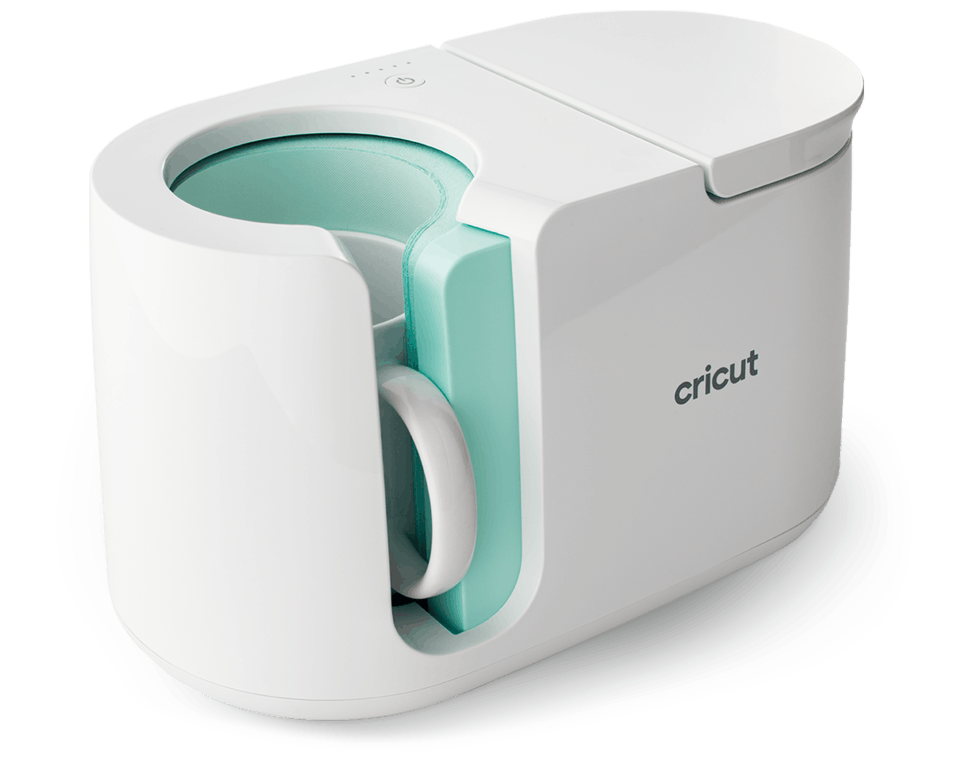
Cricut Mug Press

Cricut has a lot of different crafting machines. I’ve had the privilege of using lots of them and even own four different ones. You can my crafts on this blog along with other crafting tutorials for sewing, cutting, painting, and more. Okay, so let’s get into the Cricut Mug Press review…

What Is The Cricut Mug Press?

The Cricut Mug Press is an add-on accessory for Cricut cutting machines. It is compatible with the Cricut Joy, Maker, and Air machines. With the Cricut Mug Press, you can use Cricut Design Space software to create custom mugs and tumblers.

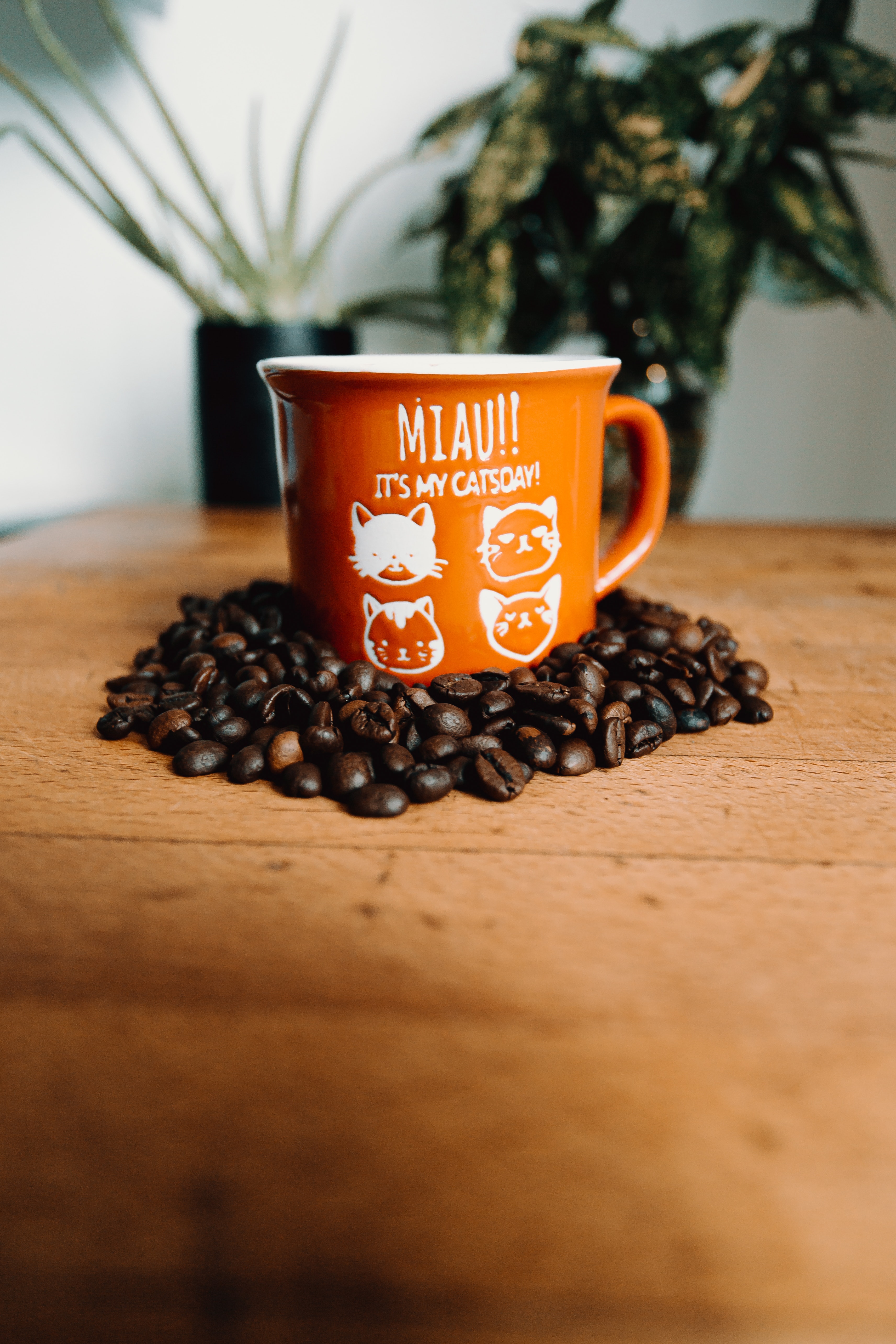
The Mug Press doesn’t apply decals; the designs are sublimated onto specially treated mugs. Your design will literally become part of the mug. The end result is a professional-looking piece with a smooth glossy finish.


GET THE CRICUT MUG PRESS HERE

Cricut Mug Press Features


The Cricut Mug Press is a fairly simple machine. It measures approximately 9.29” x 13.14” x 8.18”. This is compact enough that it stores easily on a shelf or in a drawer.

It features a patent-pending heating plate that ensures even heat distribution when transferring your design.

A simple one-touch settings button and a lever are the only controls, making it simple to operate. The “Smart Temperature” feature means that you don’t need to worry about setting a timer or figuring out how hot to set the mug press.

The Cricut Mug Press also features an auto-off switch, which prevents the machine from getting too hot. Since the mug press operates at very high temperatures, this is a very important safety feature.

What Does The Cricut Mug Press Come With?

Cricut products come with a bundle of things when you purchase a machine. These things will help you get started with crafting. The Mug Press is no different but it is a little light on accessories.

When you purchase a new Cricut Mug Press, you’ll get:

  • The Cricut Mug Press Heat Press for Mugs
  • USB cord for activation
  • User instructions to get started
  • Warranty Information

GET THE CRICUT MUG PRESS HERE

How Does The Cricut Mug Press Work?

The Cricut website describes the process to use the mug press as being just three easy steps: Design, Press, and Reveal!

That’s not inaccurate, but there are more details to creating custom-designed mugs. There is an online tutorial at cricut.com/make-mugs, but here are some important details about how the Cricut Mug Press operates.

The first thing to know about the Cricut Mug Press is that it works only with Cricut machines, and Cricut’s Design Space software.

To activate a brand new mug press, you need to do so in Cricut Design Space by plugging the mug press into a computer or laptop (not a phone or tablet).

The mug press connects to your computer via a USB cord. Once the activation process is completed, you can use Design Space from your tablet or phone if you prefer.


Once you’ve followed the steps to activate your machine, you’re ready to begin designing your first mug! It’s helpful to review the online tutorial at cricut.com/make-mugs, or many of the YouTube tutorials by talented crafters, before beginning your first project.

Next, it’s very important to note that the mug press won’t work for just any ceramic mug. This machine is basically a mug-shaped heat press that is optimized for infusible inks/sublimation printing.

You’ll need to use mugs that are known as “sublimation blanks” with this machine. Sublimation mugs (or “blanks”) are treated with an invisible poly-coating that allows the infusible inks to “fuse” with the ceramic mug.

The result is a mug where the design is not on top of the mug surface like a decal, but actually becomes part of the mug itself. Cricut sells its own sublimation mugs in several sizes.

Additionally, there are many craft companies that sell mugs and tumblers that will work in the Cricut Mug Press.

Just be sure to check that they are indeed sublimation blanks and that the size is compatible with the mug press. Any mug used in the Cricut Mug Press should also have straight (not tapered) sides.


There are a few special materials needed to design a mug using the Cricut Mug Press.

Cricut’s infusible ink transfer sheets come in a large selection of colors and patterns, and any Cricut machine cuts them nicely.

If your design involves small, intricate details, such as writing, Cricut makes a line of infusible ink pens that can be loaded into the Cricut machines just like regular drawing pens.

The infusible ink pens can draw designs onto laser copy paper that can be applied with the Cricut Mug Press. 

Mug designs, like all Cricut projects, are created using their Design Space free software. In Design Space, there are a number of “ready-to-make” mug projects, as well as blank templates to create your own unique mugs.

Once you’ve selected your design, put the infusible ink transfer sheet on your cutting mat’s shiny side down. Before cutting, click on the “mirror” button in Design Space if your image contains any letters/words.

Once your design is cut out and all small bits have been “weeded”, it’s time to apply it to your mug!

GET THE CRICUT MUG PRESS HERE

Before applying your cut design, make sure the mug is clean and dry. Then, go over the outside of the mug with a lint roller to remove any remaining dust.

Even the tiniest of dust specks can leave marks when the mug is being pressed. Start preheating your mug press; it should only take 3-4 minutes. Apply your design by setting a mug down in front of you, with the handle facing you.

Slowly wrap your cut design around the mug, making sure the transfer sheet is flush with the bottom of the mug, and that it is wrapped snugly against the mug surface. Use the mug handle position to ensure your design is centered.

Infusible ink sheets will have sticky tabs on the carrier sheets to secure the wrap to the mug. Cricut also sells heat-resistant tape, if the infusible ink sheets aren’t sticking well. Do not use regular tape; it will melt in the mug press!
When the light is green on the mug press, it’s fully preheated and ready to go. Put the wrapped mug in the press, with the handle facing outward. Lower the lever on top, and double-check that mug looks secure and centered.

Closing the lever clamps the mug in place and begins the pressing process. There’s no need to set a timer or even check the temperature; the Cricut Mug Press does that automatically.

The press takes the temperature of the mug, as well as the temperature of the ambient air, and adjusts accordingly for the best time and heat to press your design.

Most mugs should only take 5-6 minutes to complete. The mug press will beep when it’s finished.

Once the mug press is done, raise the lever on top and remove your mug. Be careful when removing the mug. The handle should be cool enough to touch, but the mug will still be very hot!

Set the mug on a folded towel or another heat-resistant surface. Let your mug cool down, then carefully peel away the carrier sheet. You should now have a professional-looking mug decorated with your unique design!  

How Much Does The Cricut Mug Press Cost?

The Cricut Mug Press has a regular price of $199.99. Of course, you’ll also need supplies to begin creating your mugs. As with most of their cutting machines and accessories, Cricut sells the mug press in bundles that also include Cricut sublimation mugs and various supplies. I recommend getting the bundle for sure.

GET THE CRICUT MUG PRESS HERE

The “Mug Press and Essentials” Bundle includes 4 mugs along with a small selection of Infusible Ink Transfer Sheets and pen for $249.93.

The “Mug Press and Everything” Bundle includes eight mugs and a larger selection of Infusible Ink Transfer Sheets and pens for the price of $313.85. 

These bundles are a good value. It would cost more money to buy the Cricut Mug Press and all the included supplies separately.  Cricut.com frequently has these bundles on sale, too.

Cricut also sells their sublimation mugs in bulk packages of 36 mugs, which might be a better bargain if you plan on making a large number of mugs.

There are other brands of sublimation “blanks” (mugs, tumblers, etc) sold by various craft stores that you can use in the Cricut Mug Press. The prices might be more affordable than the Cricut brand, but be sure to double-check measurements to ensure they’ll fit properly in your mug press. 

GET THE CRICUT MUG PRESS HERE

Is The Cricut Mug Press Right For You?

The Cricut Mug Press is a compact, easy-to-use machine that produces professional quality customized mugs. The mugs are dishwasher and microwave safe, which is an improvement over personalized mugs made with permanent vinyl decals.

If you already have a Cricut machine and are fairly familiar with using Design Space, you’ll have no trouble getting great results with this machine.

It is a bit expensive, so consider the cost of the machine and materials when deciding if you’ll use it often enough to get your money’s worth.

The mug press is great if you plan on creating custom mugs to sell, or if you want a number of mugs with a team name or your own business logo on them.

Customized mugs also make fun gifts for all occasions. Create personalized mugs for wedding and housewarming gifts, perhaps paired with some gourmet coffee and/or teas.

You can design mugs for any holiday or special occasion. Mugs can be created to match specific kitchen decor or to simply reflect one’s personality.

Cricut Design Space has hundreds of images and fun, ready-to-make mug projects – and they’re easy to do with the Cricut Mug Press.
GET THE CRICUT MUG PRESS HERE

Cricut Joy Review – Is This Cricut Machine Worth it?

1 · Aug 4, 2022 · Leave a Comment

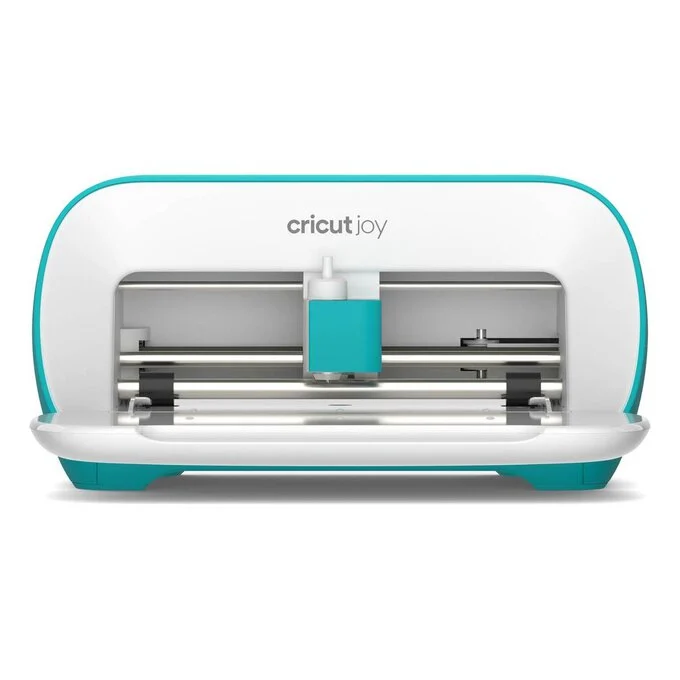
Cricut Joy Machine

Thinking about buying a Cricut Joy but have questions? You’re in the right place. In this Cricut Joy Review, I’m going to lay out exactly what the Cricut is, what it does, and if it’s the right machine for you.

The Cricut Joy is the smallest of the Cricut line of machines. It may be small, but it still can help with a large number of craft projects. It measures just 5.50 x 8.40 x 4.25 inches. There are also carrying cases available for the Cricut Joy, so you can easily pack it up and take it wherever you want to. It’s so simple; you can use it anywhere you have a wifi signal to use the Cricut Design Space app and an outlet to plug in the machine.

Cricut Joy Features

The small size and portability of the Cricut Joy are the most prominent features. Weighing just under 5 pounds, you can take this machine and your supplies with you on vacation or to have fun crafting at a friend’s house if you want. It’s also a great choice for those with limited crafting space in their homes since it can be easily stored on a small shelf or even in a drawer.

Because the Cricut Joy is compact and easy to use, this could be a great gift for any preteens/teens who enjoy crafting.

The Joy is capable of cutting over 50 materials, including Cricut Joy Smart Materials. The Smart Materials are unique in that they can be cut on this machine without a cutting mat. Because you can use the Smart Materials without a mat, the Joy can make cuts up to 20 feet long. In addition to cutting, the Joy can draw any shape and it writes in a wide variety of styles.

The Cricut Joy has one clamp for the blade housing. If you want to use a pen to draw part of your project, you will be prompted to switch out the blade and load your pen. This is different from the larger Cricut machines that have two clamps so you can use a blade and pen without having to switch them out. It’s important to note that regular Cricut pens don’t fit in the Cricut Joy clamp; you’ll need to have Cricut Joy specific pens. Fortunately, Cricut sells a wide variety of pens for the Joy and they’re not terribly expensive.

The Cricut Joy connects to Cricut Design Space (their design software) with Bluetooth wireless technology. You can use Design Space on a desktop computer, laptop, tablet, or even your smartphone. This makes it simple to use your Cricut Joy just about anywhere you can plug in and get a wireless signal.


How Does the Cricut Joy Work?

The Cricut Joy is probably the easiest Cricut machine to set up and operate. Like all the other Cricut machines, it needs to be paired with Cricut Design Space Software. To get started, you literally just plug in the Joy, open Design Space on your computer or mobile device, and click on the link to set up your new machine. It takes less than 5 minutes!

Cricut Design Space is the free software required to operate any Cricut machines. It works on any computer or mobile device. It’s easy to learn, and there are free tutorials available at learn.cricut.com to help familiarize yourself with all of its features. These tutorials will help you learn the basics of Design Space, as well as step-by-step processes for specific projects. There are many free files available on Design Space, but there is also a subscription option, known as Cricut Access. A subscription to Cricut Access gives you thousands of files and projects to upload to your Design Space account. If you don’t want to subscribe to Access, it’s possible to purchase files on Design Space individual

Every function done with the Cricut Joy is done through Design Space. Unlike the larger Cricut machines, the Joy doesn’t have any buttons or dials on it. 

If you’re using any of Cricut’s Smart Materials, you won’t need to use a cutting mat. You can load the materials directly into the Cricut Joy. You’re not limited to using Cricut Smart Materials, though. You can use most regular Cricut brand materials, as well as other brands, and simply cut them to fit on the Cricut Joy cutting mats.  

What Does the Cricut Joy Come With?

When you purchase a Cricut Joy, you’ll get the following:

  • The Cricut Joy machine and power adapter
  •  Cricut Joy blade and housing
  • Cricut Joy fine point pen (black)
  • Standard Grip Joy Mat
  • Welcome card
  • Warranty information
  • Free trial membership (for new subscribers) to Cricut Access 
  • Materials for a practice cut 

There are additional accessories you can purchase for the Joy, such as a Foiling Tool, card mats, and pens in different colors and widths.

Of course, you’ll also need to purchase materials to get started crafting with your Joy. Fortunately, Cricut also sells this machine bundled with different materials and supplies on their website.

How Much Does a Cricut Joy Cost?

The Cricut Joy is Cricut’s most affordable machine, with a regular price of $179.00. It is also sold in several different “bundled” options on the Cricut website.  The bundles include materials and accessories along with the Joy machine so you can get started on projects right away. These bundles have a regular price of around $250, but they frequently go on sale through the Cricut website. The Cricut Joy machine + materials bundles are a great value and would cost considerably more if all included items were to be purchased separately.

Another optional cost is a subscription to Cricut Access. A 30-day free trial to Cricut Access is available to new subscribers when you purchase any Cricut machine. Otherwise, the subscription costs $9.99 per month. For that price, you have access to over 200,000 images, 700 fonts, and thousands of ready-to-make projects. Additionally, Cricut Access members get a 10% discount on purchases made on cricut.com.

How Long Does the Cricut Joy Blade Last?


All of the Cricut blades are durable and last a decent amount of time. How long your Cricut Joy blade lasts depends entirely on how often you use your machine, and what materials you are cutting. On average, Cricut says their blades should last an average of six months, although it’s not unusual for the blades to last longer.

Replacement blades for the Cricut Joy are affordable at a price of just $12.99. You can tell if it’s time to replace your blade when it seems to tear your materials more than making nice clean cuts. 

Limitations of the Cricut Joy

While the Joy is a great little machine that is capable of many craft projects, it does have some minor limitations.

Because the Cricut Joy is a smaller machine, it is limited to smaller-sized projects than what can be accomplished on the larger Cricut machines. The largest cutting mat for the Joy is 4.5” by 12”. However, if you use Smart Materials which don’t require a cutting mat, the Joy can cut designs measuring 4.5 inches by 20 feet! 

While the Joy does cut 50 different materials, that is still not as much as can be cut with the large machines. It is capable of cutting quite a large variety of materials, including card stock of various sizes, poster board, assorted types of iron-on and vinyl, acetate, and even faux leather.

The only accessories available for the Cricut Joy are the blade, Joy pens of various colors and styles, and a foil transfer tool. This really isn’t a huge limitation, though. These three tools can be used for hundreds of different creative endeavors.

Is The Cricut Joy Right For You?

The Cricut Joy is a great machine for someone who enjoys crafts such as making greeting cards and invitations, vinyl decals for household goods & vehicles, labels to organize your home, and smaller iron-on projects. Instead of wrapping gifts to your loved ones on paper, you can create personalized gift bags and boxes with the Cricut Joy. You can even make customized party and holiday decorations for any occasion. Even though this smaller machine is limited in the size of what it can produce, it is capable of a surprising amount of creative tasks. 

If you’ve been curious about what you can make with a cutting machine but were hesitant about the cost, the Cricut Joy is a great choice! It is easily the most affordable cutting machine on the market, and the ease of use is unparalleled. The more you play with it, the more you’ll realize just how much you can create with it.

The Joy is also useful for small business owners or entrepreneurs who can use it to make custom labels, signs, and packaging for their products. 

Because of its compact size, the Cricut Joy is perfect for anyone who doesn’t have a large crafting space in their home, such as those who live in a small apartment or dorm room. Because it’s portable, you can take it along while you travel.

The Cricut Joy is a remarkable little machine with large crafting capabilities. It’s a great choice for anyone curious about what a cutting machine can do, or even as an additional Cricut machine for when you need to complete smaller projects. 

12 Cricut Maker Projects You’ll Love

42 · May 8, 2022 · Leave a Comment

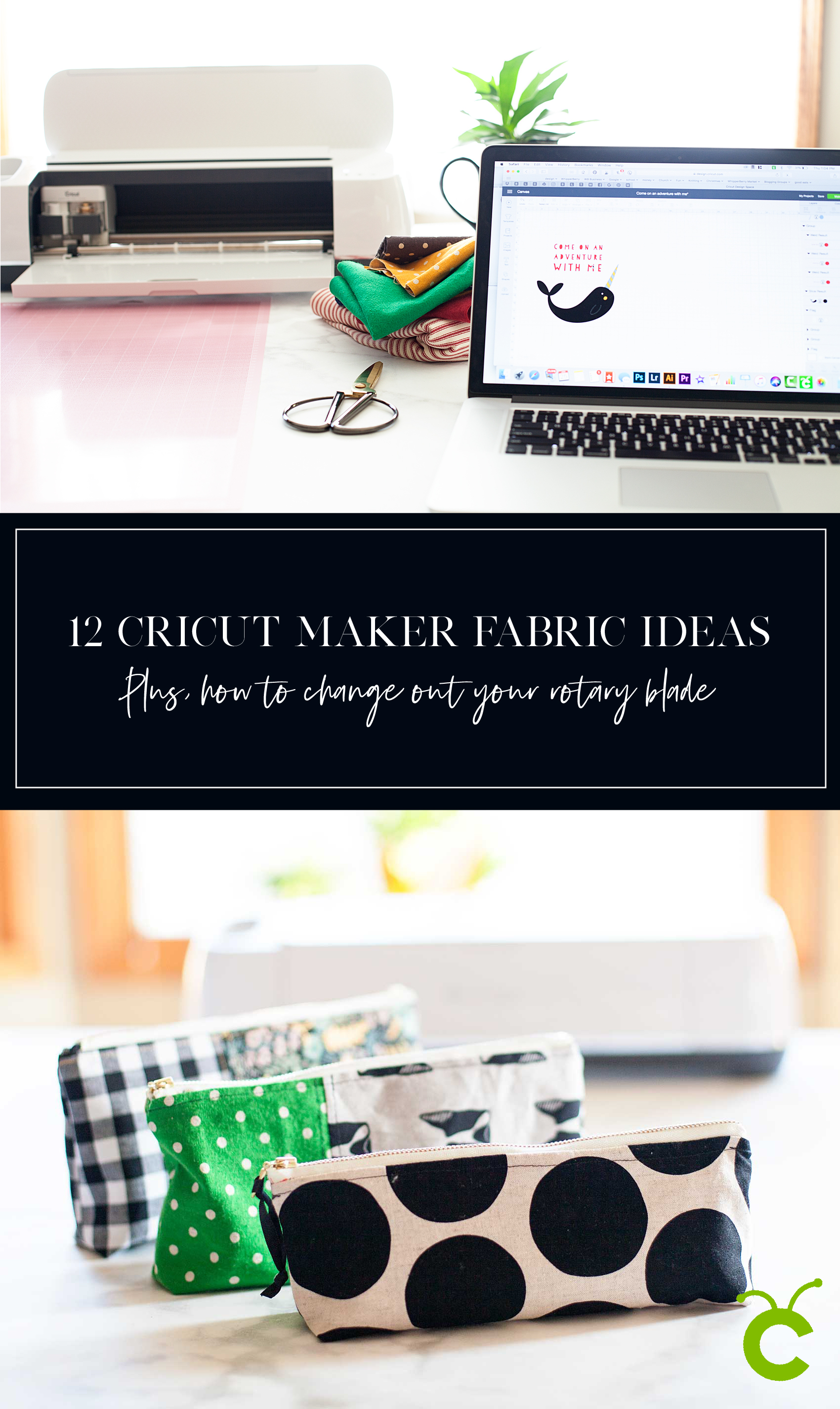
I LOVE, LOVE, LOVE my Cricut Maker! I’m especially loving creating more with fabric these days. I’m always looking for more Cricut Maker project inspiration.12 Cricut Maker Fabric Projects PLUS + For every Cricut Maker user, there comes a time when you will need to change out your rotary blade. This is something that is relatively new to the Cricut world, and is super easy to do following the proper instructions. 

The Cricut Maker is a cutting machine that allows you to do many different types of crafting. There are so many different things that you can make with this machine and the possibilities are endless.

This article will provide you with 12 project ideas for your Cricut Maker. With these projects, you will be able to use your creativity and create some really amazing things.

Looking for some inspiration on what to make with this fabulous new cutting tool? Here are some that might get your creative juices flowing…

Cricut Maker Fabric Project Inspiration for Beginners

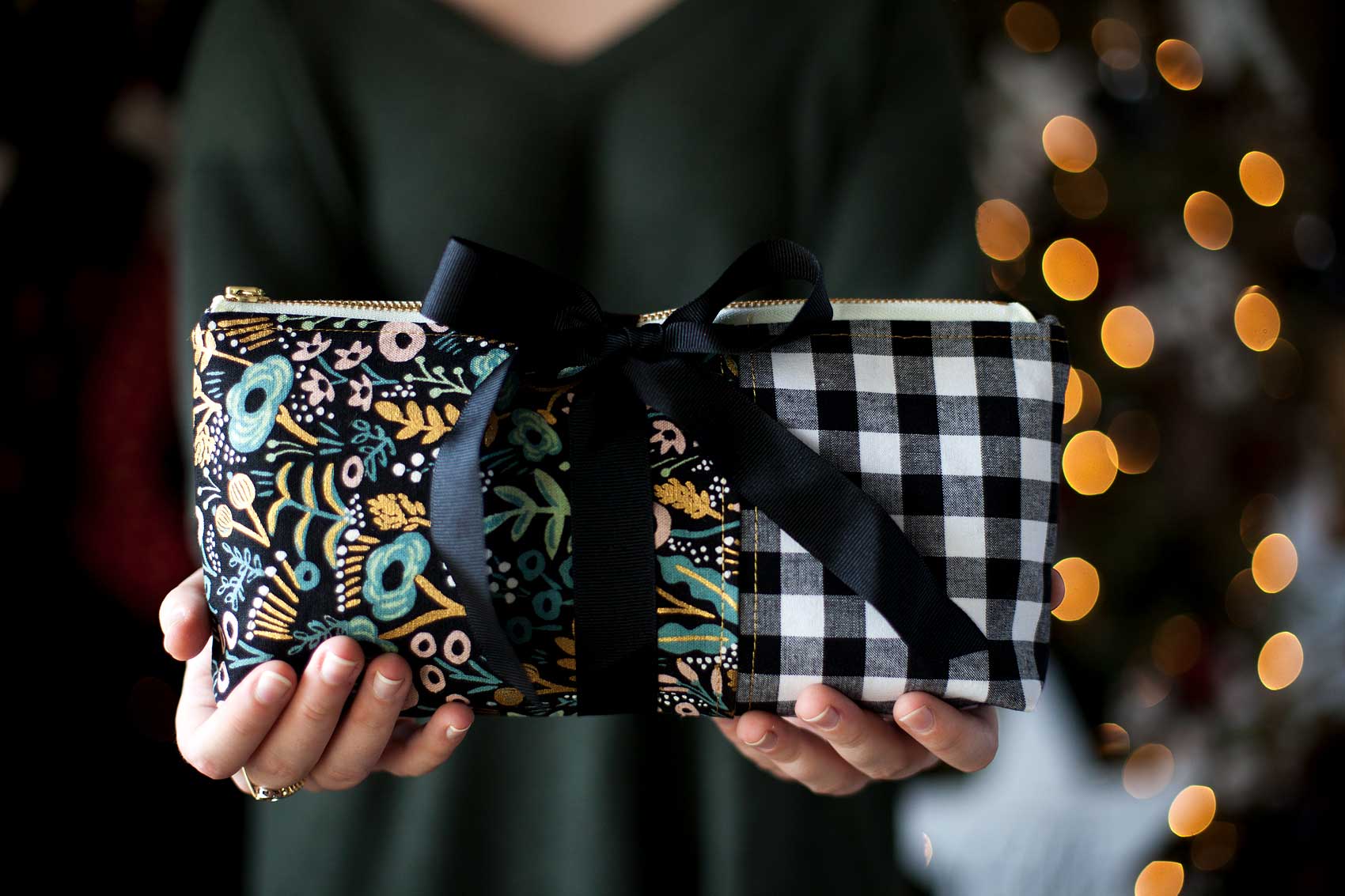
Everyone loves thoughtful homemade gifts and this stylish zipper pouch is the perfect gift to whip-up in a fews hours to give as a fabulous Christmas gift this year + you can take the guess work out of cutting the pattern with the Cricut Maker! Come on over and learn how to make one of your own on WhipperBerry.

Zipper Pouch + created by ME, WhipperBerry

I created this zipper pouch after browsing Pinterest for some Circut project ideas. I found a pouch that I liked and thought I would remake it but change it a little. I think it came out great and it was a lot of fun. What do you think?

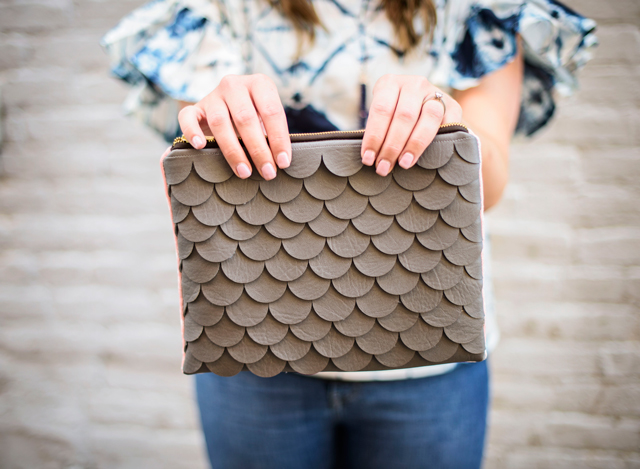
Scallop leather clutch created with Cricut Maker • See Kate Sew

Scalloped Leather Clutch + See Kate Sew

I just love this scalloped leather Clutch by See Kate Sew. I think she did a wonderful job. It’s amazing that a Cricut Maker can make something like this, isn’t it?

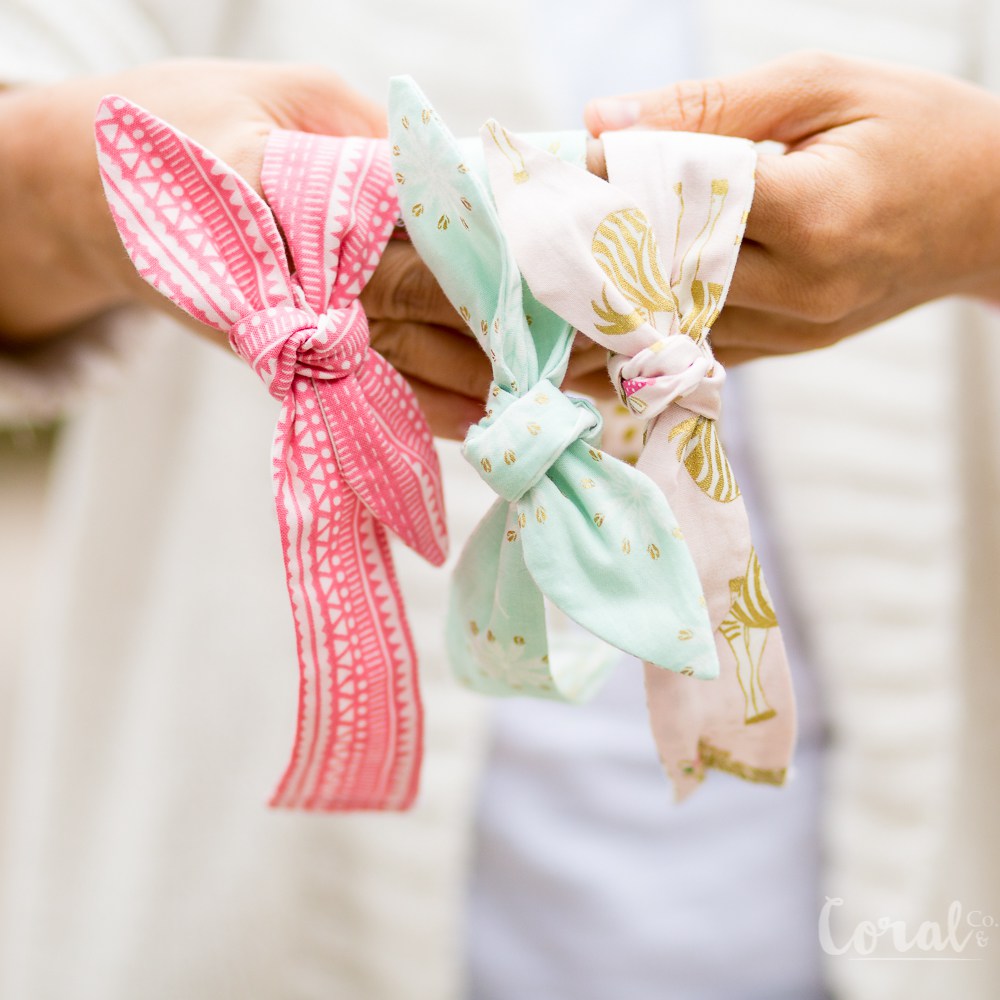
Knot Headband created with Cricut Maker • Coral + Co

Knot Headband + Coral & Co

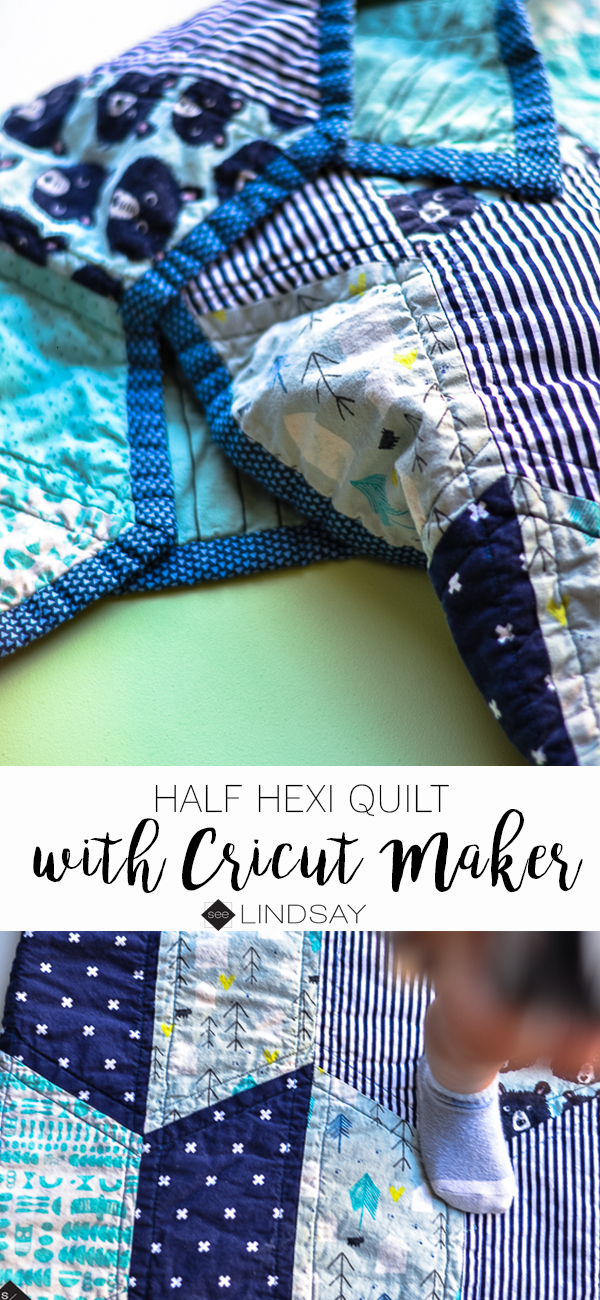
Baby Quilt with Cricut Maker • See Lindsay

Baby Quilt + See Lindsay

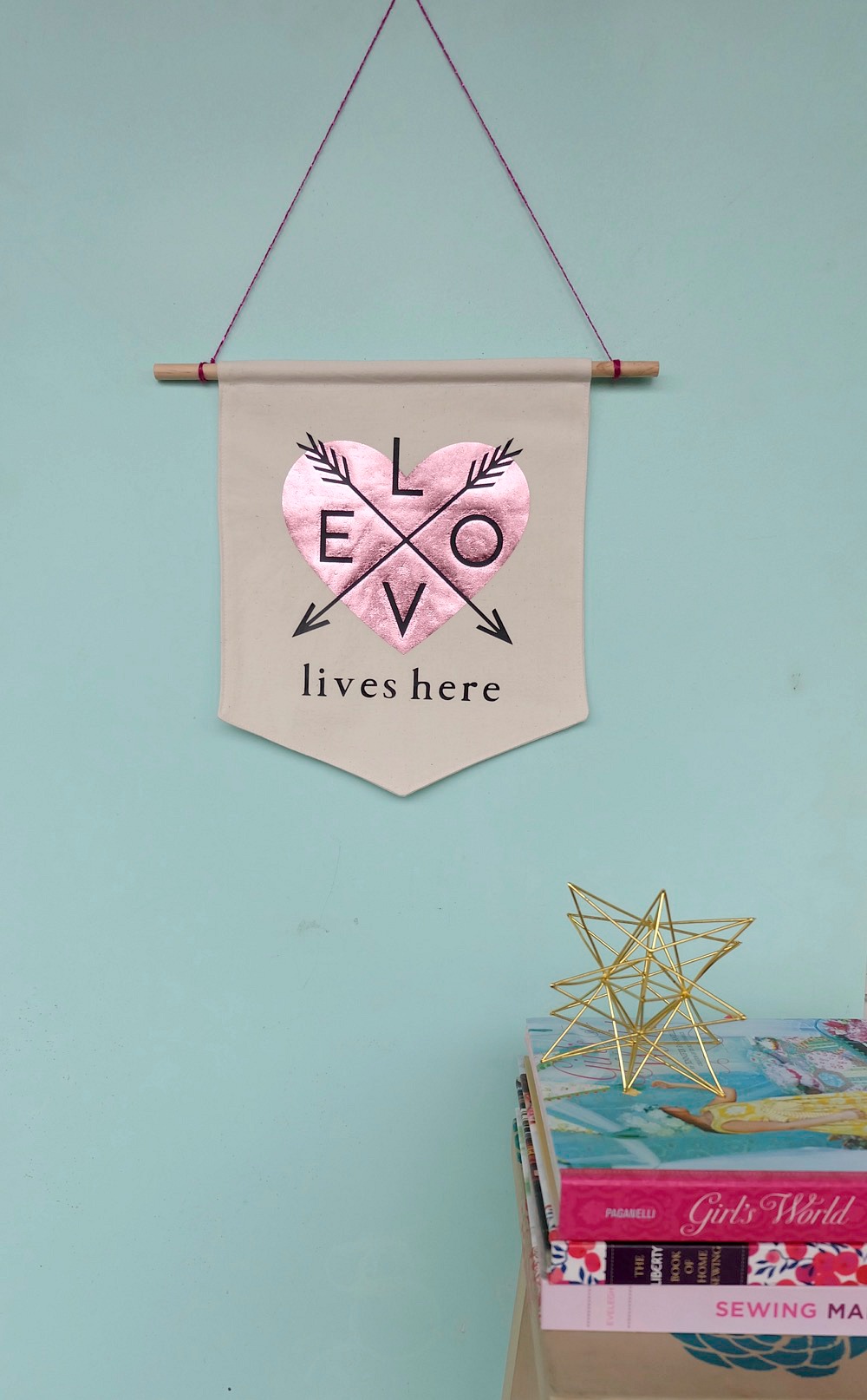
Love Banner created with Cricut Maker • Hello Creative Family

Love Lives Here BannerLove Lives Here Banner + Hello Creative Family

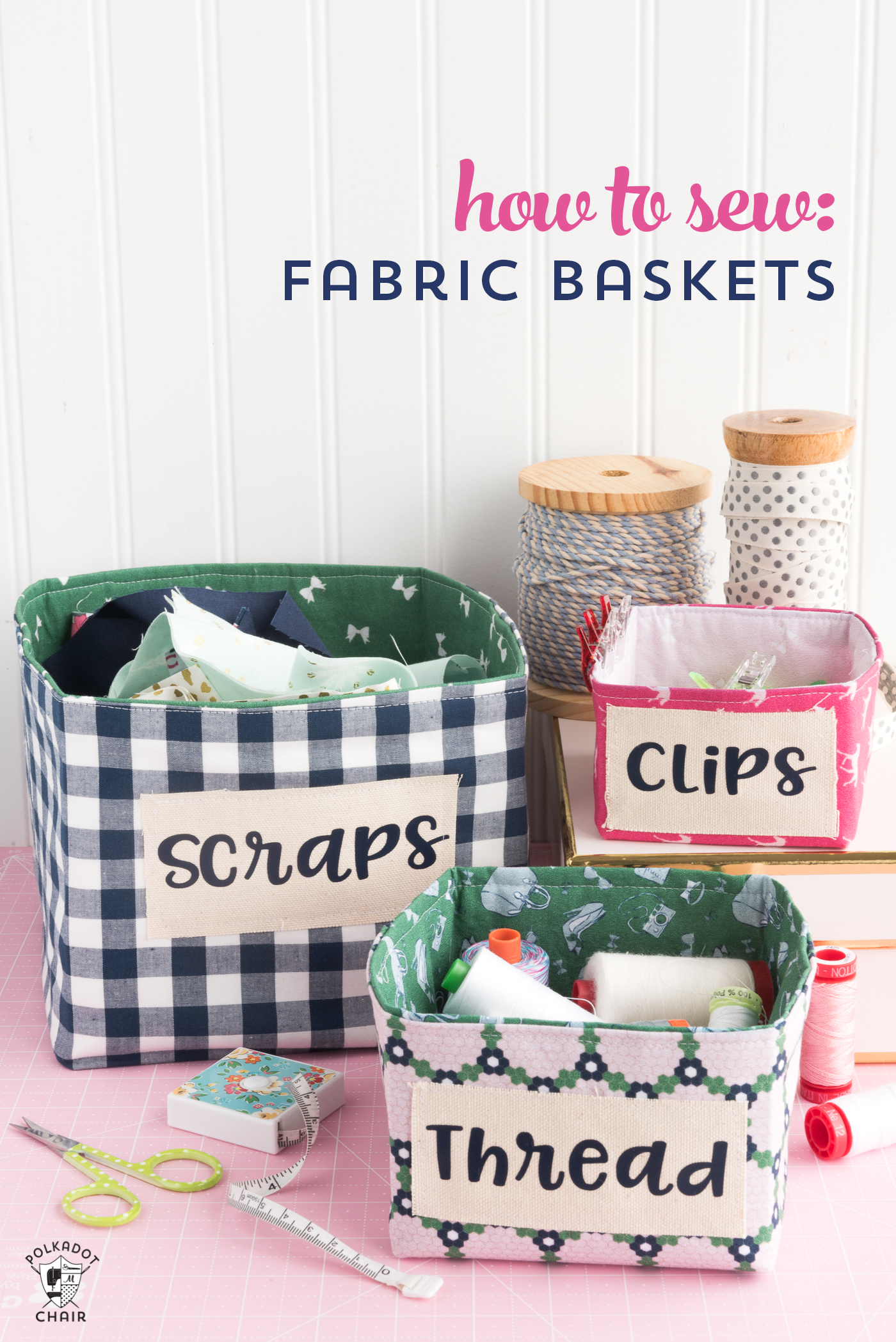
How to Sew Fabric Baskets with the Cricut Maker • Polkadot Chair

How to Sew Fabric Baskets + PolkaDot Chair

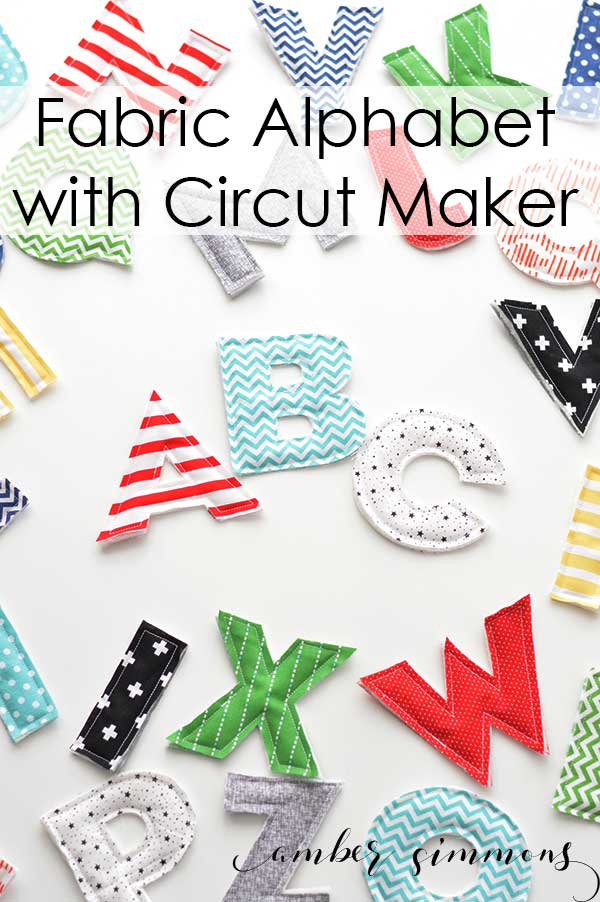
Fabric Alphabet for Cricut Maker •  Amber Simmons

Fabric Alphabet + Amber Simmons

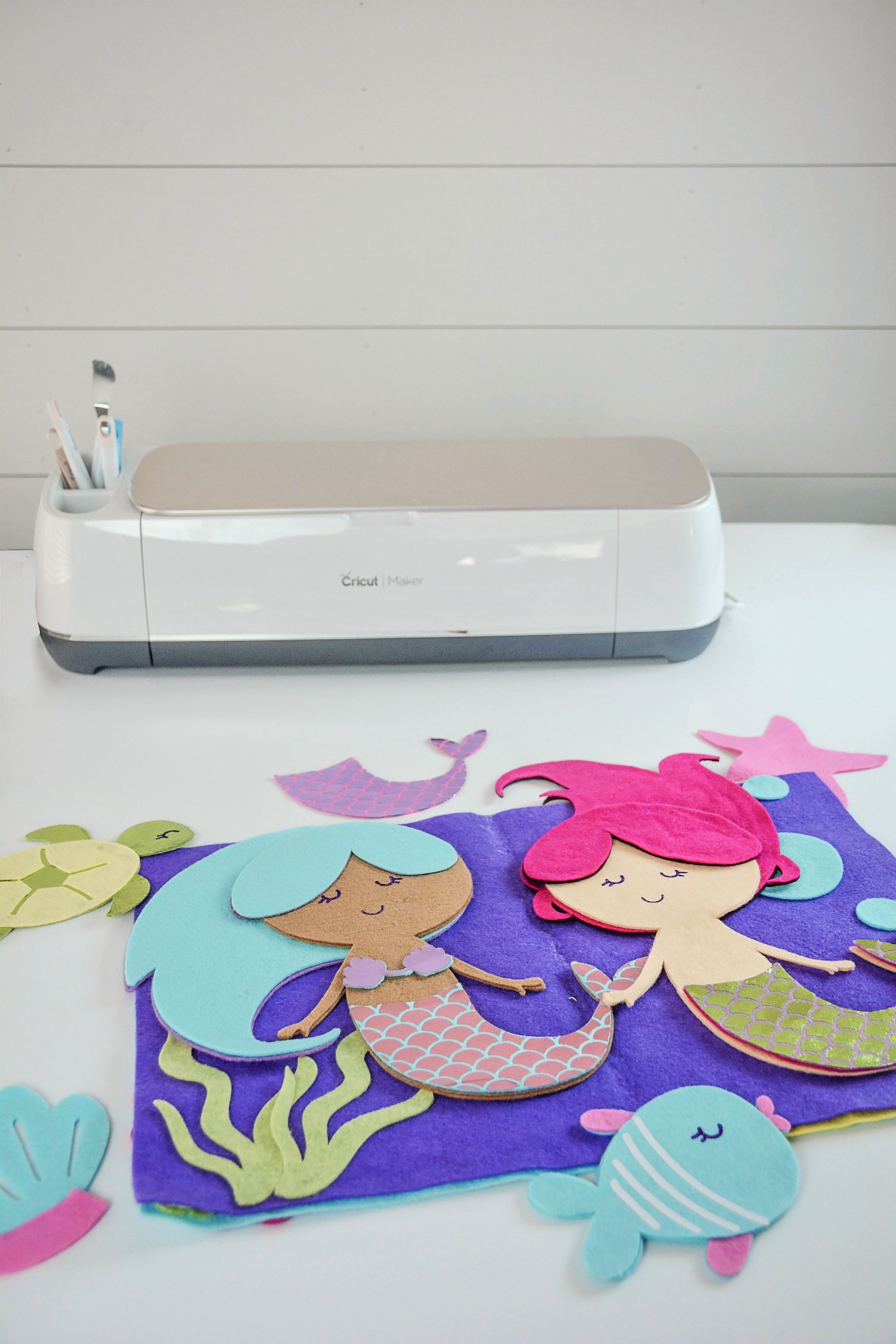
Mermaid Book created with Cricut Maker + Sweet Red Poppy

Mermaid Book + Sweet Red Poppy

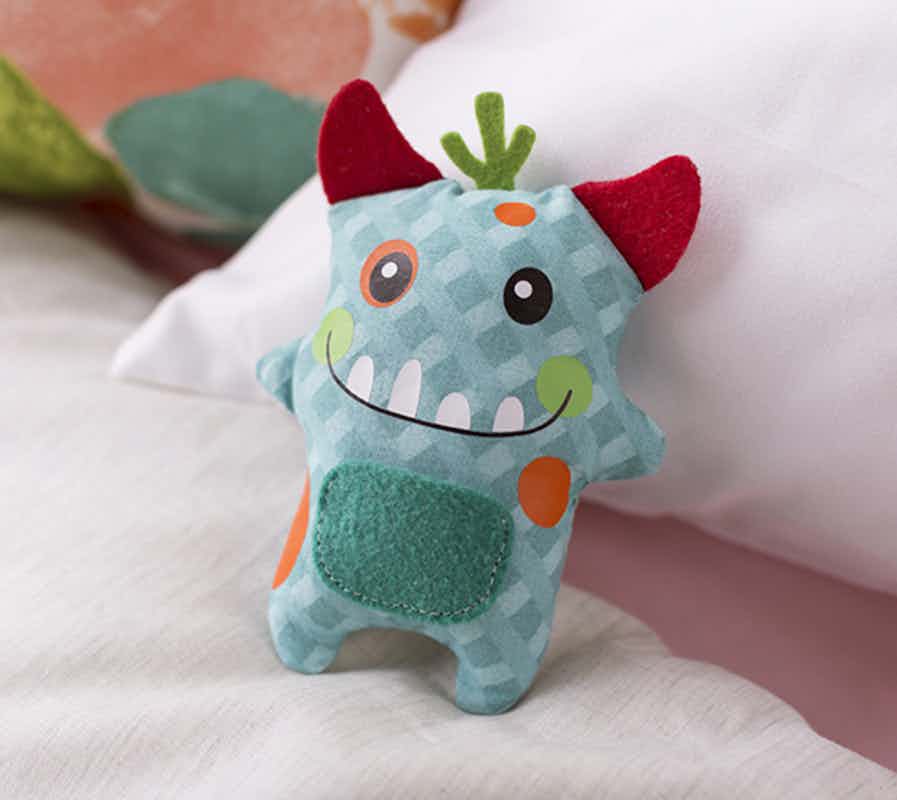
Cricut Maker Tooth Fairy Monster created by The Idea Room

Tooth Fairy Monster + The Idea Room

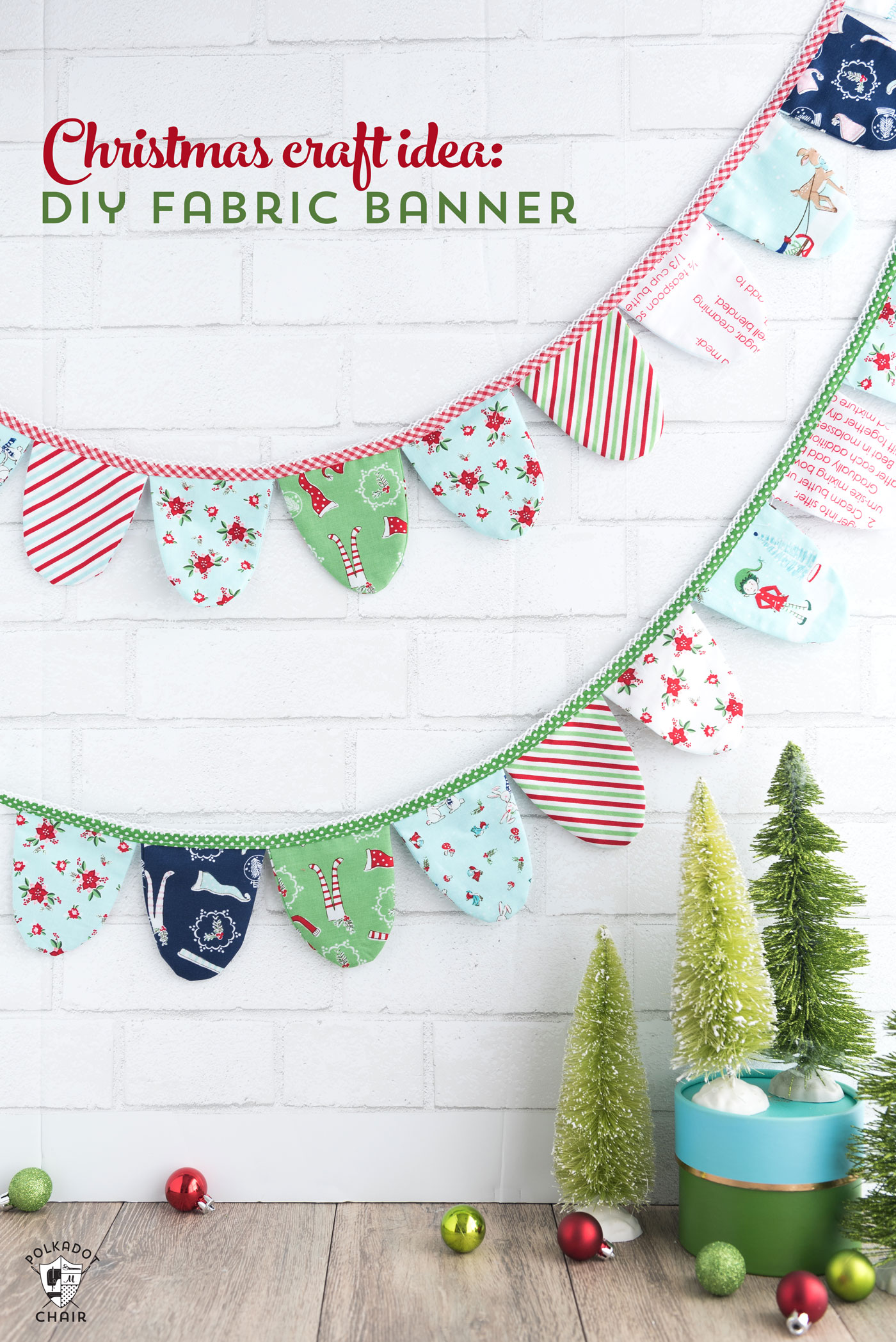
Fabric Banner created with Cricut Maker •  PolkaDot Chair

Fabric Banner + PolkaDot Chair

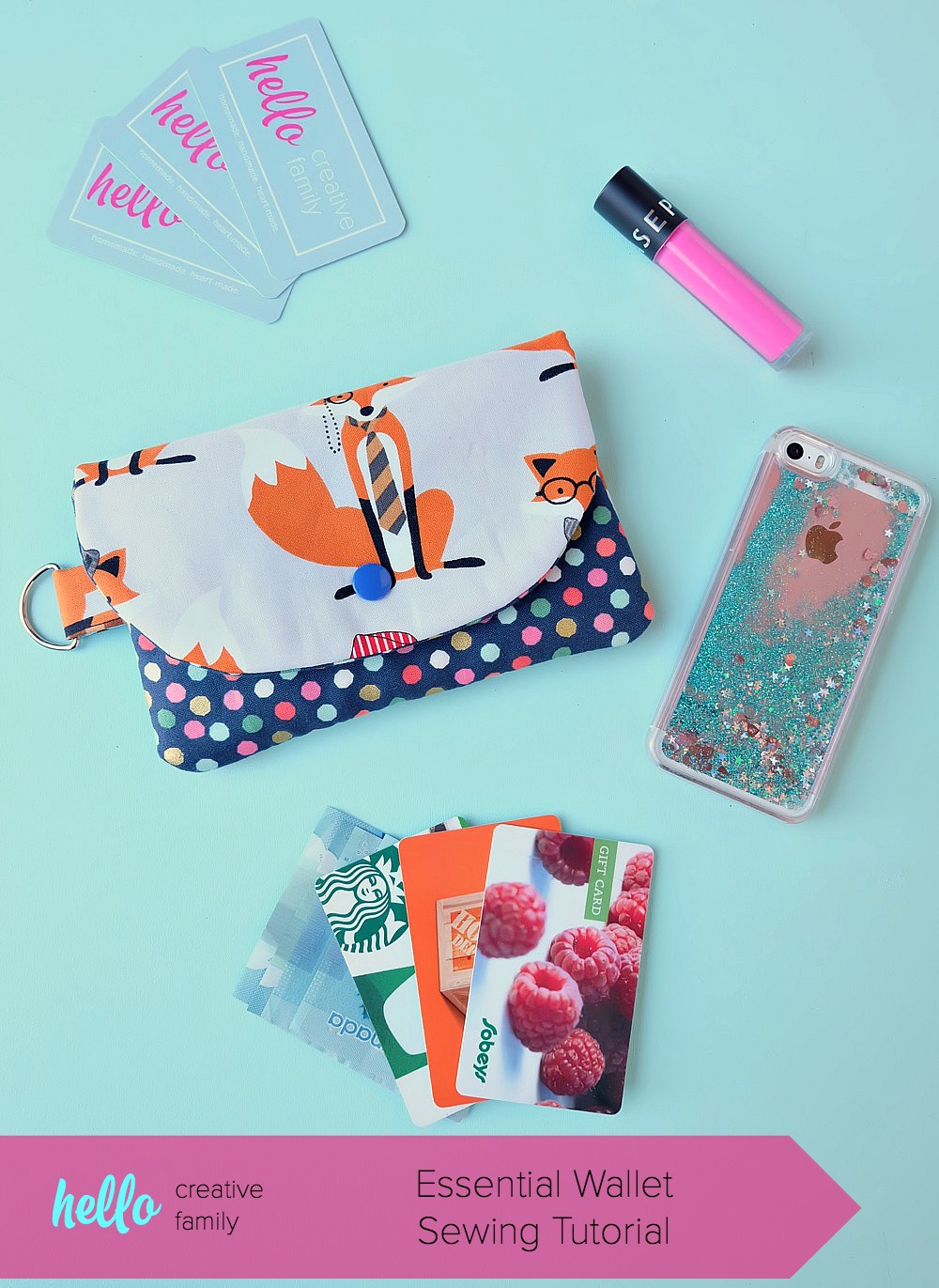
DIY Wallet created with Cricut Maker •  Hello Creative Family

The Essentials Wallet + Hello Creative Family

SaveSave

SaveSave

This is a sponsored conversation written by me on behalf of Cricut. The opinions and text are all mine.

How to Replace a Cricut Maker Rotary Blade

41 · May 8, 2022 · Leave a Comment

I LOVE my Cricut Maker! I use it so much that I end up having to change the rotary blade.

For every Cricut Maker user, there comes a time when you will need to change out your rotary blade. This is something that is relatively new to the Cricut world and is super easy to do following the proper instructions. If you are new to creating with Cricut, the Cricut Maker Rotary Blade is the magical blade that cuts fabric when using the Cricut Maker machine! With its gliding, rolling action, it cuts virtually any fabric quickly and accurately – without backing material. It’s pretty fabulous! After you’ve cut to your heart’s content, you will eventually have to change out your blade, here’s a tutorial for how to replace a Cricut Rotary Blade. And, if you’re not sure if a Cricut or a Silhouette is right for you then make sure to read that article first. Ok so, scroll down for the tutorial on changing your Cricut blade.

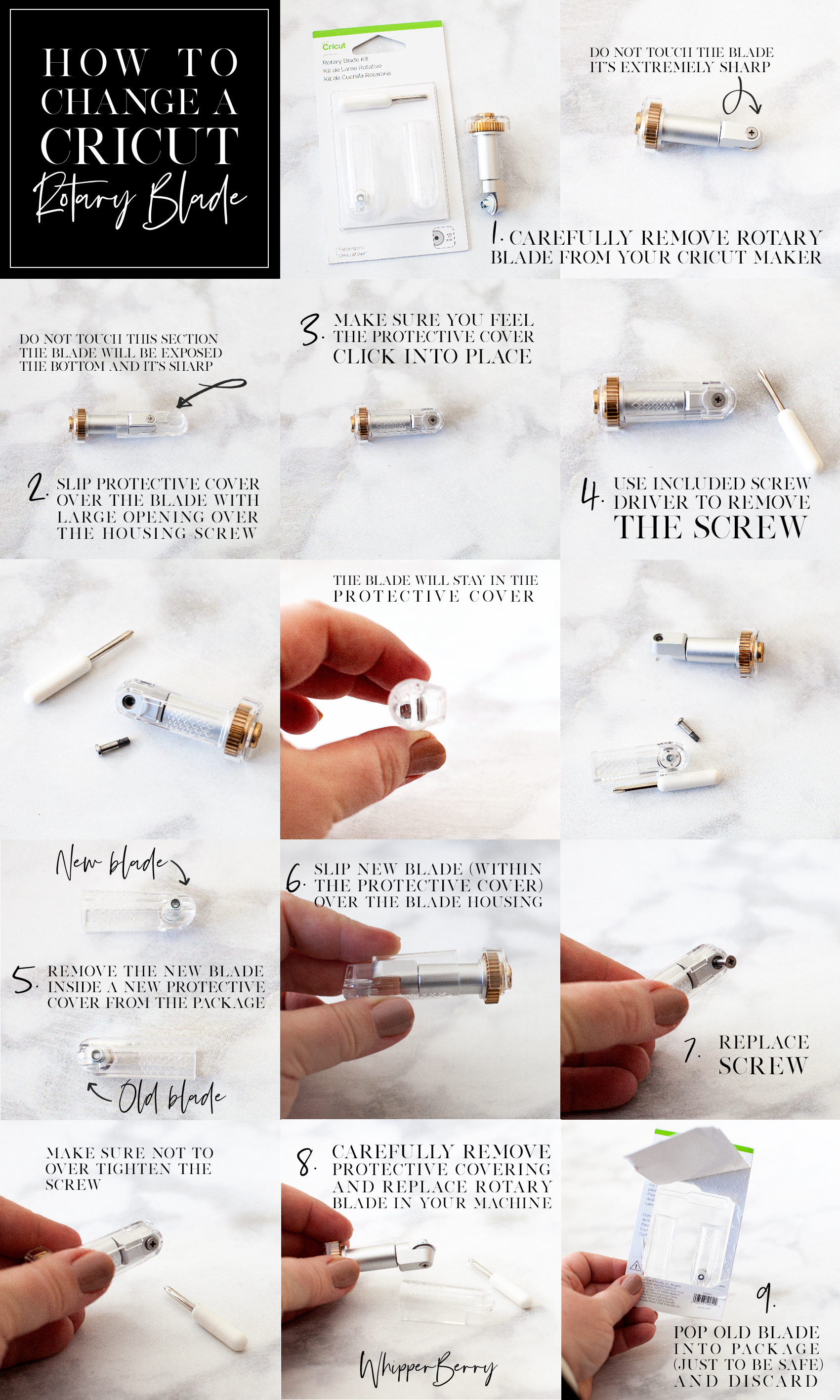
Below is a quick Pinable graphic that you can save so that you can reference it later on how to change your Cricut rotary blade. You can even print a PDF version of it HERE if you’d like.

For every Cricut Maker user, there comes a time when you will need to change out your rotary blade. This is something that is relatively new to the Cricut world, and is super easy to do following the proper instructions. 

How to Change the Rotary Blade on a Cricut Maker 

Before you begin, you need to make sure you remember you are working with a VERY SHARP blade and to be safe while working with it at all times. You can pick up a rotary blade kit from Amazon here.

  1. Carefully remove the rotary blade from your Cricut Maker.
  2. Slip protective cover, from the Rotary Blade Kit over the blade with the large opening over the housing screw. View graphic to view safety warning.
  3. Make sure you feel the protective cover click into place.
  4. Use provided screwdriver to remove the screw from the housing. View graphic for step-by-step photo instructions. Keep in mind that the blade is meant to stay within the protective cover. This is a great feature created by Cricut to protect their Cricut family of users. I think it’s genius!
  5. Remove the new blade, already in a new protective cover, from the package.
  6. Place over your housing like before.
  7. Using the provided screwdriver, replace the screw making sure not to overtighten.
  8. Carefully remove the protective covering and replace the rotary blade in your machine.
  9. Just to be safe, I place my old blade, still in the protective cover, back into the packaging before I toss it in the trash.

That’s it, you’re ready to rock’n roll again. Looking for some inspiration on what to make with this fabulous new cutting tool? Jump over to the 12 Cricut Maker Project Ideas.

  • « Go to Previous Page
  • Page 1
  • Page 2
  • Page 3
  • Page 4
  • Page 5
  • Interim pages omitted …
  • Page 13
  • Go to Next Page »

Primary Sidebar

Heather from Whipperberry
Hello... my name is Heather and I'm the creator of WhipperBerry a creative lifestyle blog packed full of great recipes and creative ideas for your home and family. I find I am happiest when I'm living a creative life and I love to share what I've been up to along the way... Come explore, my hope is that you'll leave inspired!

Footer

  • Privacy Policy
  • Crafts
  • Food
  • Gifts
  • Holidays
  • Home
  • Mom Life
  • Recipes
  • Travel

Copyright © 2026 · Seasoned Pro