• Skip to primary navigation
  • Skip to main content
  • Skip to primary sidebar
  • Skip to footer

Whipperberry

WhipperBerry • Your Home For Creative Inspiration

  • Home
  • Recipes
    • Starters
    • Easy Weeknight Dinners
    • Main Dish
    • Salads
    • Side Dish
    • Soups & Stews
    • Desserts
    • Breakfast
    • Miscellaneous
  • Tutorials
    • Creative Crafts
    • DIY Decor
    • Fabric Crafts
    • Food How-To
    • Jewlery
    • Paint Projects
    • Paper Art
    • Party Styling
    • Photography and Graphic Design
    • Silhouette
  • Holidays
    • Easter
    • Mother’s Day
    • Father’s Day
    • 4th of July
    • Halloween
    • Thanksgiving
    • Christmas
    • Valentine’s Day
  • Gift Ideas
    • Gifts For Everyone
    • Gifts for Dad
    • Mother’s day
    • For The Girls
    • For The Kids
    • Teacher Gift Ideas
    • Christmas
  • Printables
    • Holiday
    • Gift Idea
    • LDS Primary
  • Travel
  • About
    • Terms
  • Contact
  • Nav Social Menu

    • Facebook
    • Instagram
    • Pinterest
    • RSS
    • Twitter

Crafts

Cricut vs Silhouette – What’s the Difference? (2024)

572 · Dec 25, 2022 · 57 Comments

Just about any crafting enthusiast has heard of Cricut or Silhouette brand cutting machines. These machines have revolutionized the world of DIY crafts, giving anyone the ability to create custom vinyl decals, cards, home and party decorations,  t-shirts, and so much more. They’re invaluable for independent artists and small business owners as well. 

Key Takeaway for Cricut vs Silhouette

Cricut is the winner for me. I’ve been a crafter for 20+ years now and I’ve used both extensively. If you’re short on time then just get the Cricut. If you want to know why then read this full article.

Get It Here

The two main manufacturers of these machines are Cricut and Silhouette. There are numerous similarities and differences between these two brands. Is one brand “better” than the other?

This article is going to take you through a comparison, and hopefully, it will help you decide if one or the other is right for your crafting needs.

Cutting Machines: What Can They Do?

The name “cutting machine” seems like an overly simple description for the capabilities of these machines. Both the Silhouette and Cricut machines cut a variety of materials with precision cutting blades.

You can create decals and labels using vinyl, and make customized cards for any occasion with a variety of card stocks and papers. With heat transfer (iron on) vinyl, you can add your own designs to t-shirts, towels, hats, jackets, and just about any clothing item.

Using sublimation paper or pens, you can transform plain mugs and water bottles that are perfect for yourself or as gifts for your friends and family. Some of the cutting machines can even cut thicker materials like bonded fabric, craft foam, felt, and balsa wood. You can use a machine like the Cricut mug press to put images and labels on mugs.

Really, once you start using a Cricut machine or Silhouette machine, your imagination will go into creative overdrive!

Get It Here


Cricut vs. Silhouette Machines: A Basic Comparison

Before getting into the details of what makes Silhouette and Cricut so different (or the same) from each other, here’s a brief comparison of the cutting machines available from each company. 

There are currently two Silhouette models of cutting machines being sold on their website: the Cameo 4 and the smaller Portrait 3. 

On the Cricut website, you’ll find more models available; the Cricut Explore Air 2, Cricut Explore 3, the Cricut Maker, Cricut Maker 3, and the smaller Cricut Joy.  

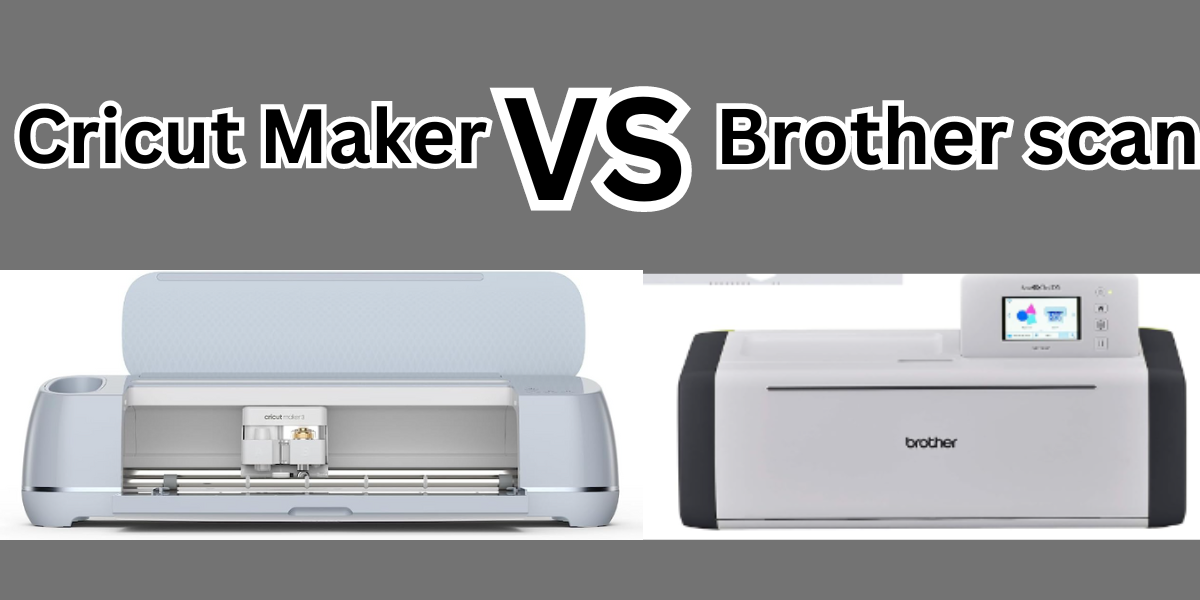
For the purposes of a fair comparison, we’ll compare the Silhouette Cameo 4 against the Cricut Maker 3. Both of these are the top of the line machines, with the widest varieties of cutting capabilities.

Let’s take a more in-depth look at the similarities and differences of these two machines, beginning with the Silhouette Cameo 4.

Silhouette Cameo 4:

The Silhouette Cameo 4 is available in three sizes; 12 inch width, 15 inch width, and a large 24 inch wide machine. It’s nice to be able to choose machine size based on your crafting space and project needs. The larger sizes are marketed more towards professional designers and small business owners. The features on all three sizes are basically the same.

When you purchase a Silhouette Cameo, here is what is included:

  •  The Silhouette Cameo 4 machine
  •  power cable and a USB cable
  •  a 12-inch by 12 inch Cameo cutting mat
  •  AutoBlade
  •  Adapters for the standard blade, premium blade, deep-cut blade, 2mm Kraft Blade, and for the Silhouette sketch pens.
  •  One month Silhouette Design Store subscription (once you register your machine
  • Free version of Silhouette Studio software, with 100 free exclusive designs (available for download)
  •  Warranty information: one-year parts and labor, limited to USA and Canada only.

The Silhouette Cameo 4 has a sleek, angular design that is going to look good in any craft room. The controls on the machine are a small touch screen that disappears when not being used. The twelve-inch width Cameo 4 model weighs approximately eleven pounds, which is slightly less than the weight of the comparable Cricut Maker.

Silhouette Cameo 4: Cutting Features 

The Cameo 4 can cut approximately 100 materials, including a variety of specialty papers, cardstocks, adhesive vinyls, heat transfer materials, specialty materials such as magnet sheets, lightweight wood sheets (such as balsa wood and chipboard), vellum, transparencies, fabrics, craft foam, and faux leather.

The maximum cutting depth for this machine is 3mm, which is more than adequate for heavier specialty materials. This machine has an impressive cutting force of 5 kg.

That’s a full kg more than the Cricut Maker 3. While that much cutting force is great if you’re going to primarily use your Cameo 4 for heavier materials such as fabric, craft foam sheets, and faux leather, it really doesn’t make any difference if your projects will primarily involve cutting vinyl, cardstock and iron-on materials.

Keep in mind that having extra cutting force isn’t always a better option. If your project involves cutting complicated designs on thicker materials, using less cutting force with several passes might give you cleaner, more precise cuts. 

It’s important to note that you’ll need to purchase the Kraft Blade or Rotary Blade to successfully cut any thicker materials.

You’ll also need to purchase a separate Pen Holder if you want to use pens or markers to draw or write on any of your projects.

The pen holder is nice, especially since it has adapters that will allow use of pens other than the Silhouette brand. However, the Cricut Maker has a dual carriage feature that doesn’t require the purchase of a separate accessory to use their pens.

The Cameo 4 does have a few nice features that the Cricut Maker doesn’t have. One of the most prominent is the built in roll feeder.

With the roll feeder, you can attach your roll of vinyl directly to the machine, and it will feed directly into the cutting area. This allows you to cut materials such as vinyl, sticker sheets, and heat transfer vinyl without using a  mat. When using the feeder, you have a potential continuous cutting length of 10 feet!

On the back of the Cameo 4 is a built in “cross cutter” that allows you, after cutting your project without a mat, to trim your material right off the roll after the machine is done cutting.

Another nice cutting feature is the “pop out” cutting setting that will allow you to cut cardstock and papers without having to use a cutting mat.

When making “pop out” cuts, the Cameo will occasionally lift the blade, leaving tiny portions of the design uncut so your design will still be connected to your paper or cardstock. Essentially, it creates perforations on your project instead of cutting it out. 

Once you are done cutting, you simply “pop” the cut piece out of your material! Cricut machines also have this capability, but you have to use a separate “Perforation Blade” for this function.

It should be noted here that while the feeder makes cutting large projects much easier, it doesn’t work as well if your project has smaller, more intricate designs.

Cutting on a mat will give you better stability and control for making fine cuts. The “pop out” cuts are also nice for larger, more simple shapes, but the cut lines don’t always turn out perfectly smooth, and again it doesn’t work quite as well for intricate designs. 

There is one more consideration when buying any cutting machine, and it’s something that usually doesn’t come to mind until you’ve already made your purchase and are trying out your new machine.

I’m referring to the noise level. There truly isn’t any such thing as a silent cutting machine. All makes and models will operate with some level of noise. The Silhouette Cameo 4 is loud.

It’s not so loud that you won’t be able to hear a nearby television or music playing, but you’ll probably need to turn up the volume a bit more than you normally would.

The Cricut Maker, comparatively, isn’t silent by any means; but it’s not as noisy as the Cameo 4. If you need a relatively quiet space to do your crafting, this is something you might want to give serious consideration to.

Let’s take a look at the basic functions of the Cricut Maker 3 now, and see how it compares to the Cameo 4.

Cricut Maker 3:

The Cricut Maker 3 is the top-of-the-line model of Cricut cutting machines. It has the ability to cut over 300 different materials, and is compatible with 13 different specialized tools. With the variety of Cricut tools and blades available for the Cricut Maker 3, you can cut, score, deboss, write, draw, and even engrave.

When you purchase a Cricut Maker 3, here is what is included

  • Cricut Maker 3 machine
  • Premium Fine-Point Blade and Housing
  • USB cable and power adapter
  • Welcome card, with instructions on how to register your machine online and get started
  • Free 30-day trial subscription to Cricut Access (for new subscribers)
  • Access to 100 ready-to-make projects with your trial subscription to Cricut Access
  • Sample material to do a practice cut.
  • Information on the One-Year Limited Warranty


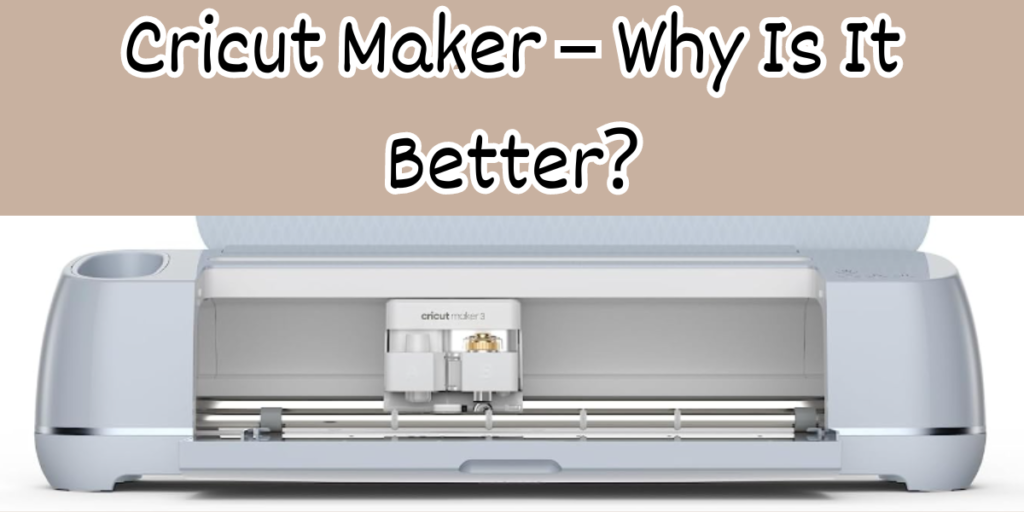
The Maker 3 is a nice-looking machine, with rounded corners and it is available in several colors. The overall design is very “crafter friendly”, with a storage cubby for your small tools such as tweezers, scissors, pens, and the weeding tool. On top, you’ll find a handy slot that acts as a holder for your phone or tablet. The Cricut Maker is a solid machine that weighs 15.4 lbs.

Get It Here

Cricut Maker 3 Cutting Features

The Cricut Maker 3 can cut over 300 different materials. In addition to an assortment of specialty vinyl, cardstock, and iron-on materials, it also easily cuts leather, balsa wood, bonded fabric, foam board, vellum, transparencies, and more. It has a maximum cutting depth of 2mm and a maximum cutting force of 4 kg.

Both of those are slightly less than the power of the Silhouette Cameo 4, but the Cricut Maker 3 still does an outstanding job at cleanly cutting heavier specialty materials.

One thing that makes the Maker 3 stand out against other cutting machines is its versatility. While there are nine specialty tools and blades available for the Cameo machine, there are 13 different blades and tools available for the Maker 3. In addition to the assorted knife blades and pens that both machines feature, with the Cricut Maker 3 you can also purchase a foil transfer tool, a bonded fabric tool, a scoring stylus or wheel, an engraving tool, debossing tool, a wavy blade, and the perforation blade. 

These specialty tools bring so much versatility to your crafting experience, but you will probably find yourself using one of the simpler Cricut tools more than anything else; the scoring stylus.

The scoring stylus, or a scoring wheel if you prefer, really is essential if you use your Maker 3 to make greeting cards or paper crafts of any kind. It’s a blunt tool that creates a slightly creased line anywhere you need to fold on your cut piece. With the scoring stylus, you’ll get a perfectly straight, precision fold without weakening your finished project.

Unfortunately, the Silhouette machines don’t have a comparable scoring tool. Instead, there is a “score” option in their design software, but it doesn’t truly score your paper. Instead, the blade will perform a very light cut, only halfway through your cardstock or paper, anywhere you want a fold line. It works perfectly fine, but because it’s a partial cut it does weaken your material a little bit. 

The Cricut Maker 3 does have the ability to cut some materials without the use of a mat. You can do this by using Cricut brand Smart Materials.

Smart Materials come in a roll with a slightly heavier backing on them. It’s easy to load any smart material into the machine, and they cut beautifully.

Because the backing is slightly heavier than Cricut’s “regular” materials, you can successfully cut more detailed designs with Smart Materials. 

Using Smart Materials can save time, also. If you’re making a large number of vinyl decals or custom t-shirts, for example, you can cut them more quickly without having to switch out mats. Just load your roll of vinyl or heat transfer Smart Materials into your Cricut Maker and you can cut them all in no time! 

When using Smart Materials, you can cut a continuous length of up to 75 feet! If you use your Maker 3 for vinyl cutting to create classroom or outdoor decorations, the ability to cut long pieces makes the work so much easier.

While the Maker 3 doesn’t have an attached feeder and cross-cut trimmer like the Silhouette Cameo, you can purchase a roll feeder accessory with an attached trimmer separately. Unless you are cutting Smart Materials in very long lengths, you might not even miss having the feeder.  

Get It Here

Cricut Design Space vs. Silhouette Studio Software

By now, you’ve probably realized that when it comes to basic cutting functions, there are more similarities than differences between the Silhouette Cameo 4 and the Cricut Maker 3. The real differences between these two machines comes down to the software. You can’t operate either brand of machine without the required software or app, and while both Silhouette Studio and Cricut Design Space are good programs, there are some notable differences. 

Silhouette Studio Software

Silhouette Studio Software is Silhouette’s software to create projects & send them to your cutting machine. If you’re familiar with graphic design programs, you probably won’t have much trouble learning to use the Silhouette software.

If you’re unfamiliar with such programs though, you might find it has a steep learning curve at first.

SIlhouette’s software is a desktop-only application; compatible with Windows and Apple operating systems. However, it isn’t compatible with Chromebooks, tablets, smartphones, or any mobile devices. This is a big drawback for crafters who like to use their ipads with their cutting machines. There is a free mobile app called “Silhouette Go”, that allows you to access the designs in your Silhouette library and send them to your cutting machine, but it doesn’t give full access to all the design features.

The Silhouette software has some advanced features available, such as a freehand drawing tool, and a “trace” tool, that isn’t available with Cricut Design Space software. However, you need to purchase one of the paid versions of the software to access these tools.

Silhouette’s software has a total of over 60 design tools, depending on which version of the software you are using. There are four different tiers of Silhouette Studio; let’s take a look at how they compare to each other.

Versions of Silhouette Studio Software

The Basic Edition (Free!), gives you access to ready-made images and projects from the Silhouette Design Store, the ability to work with fonts installed on your computer, the ability to import JPG and PNG images and convert them to “cut and print” designs, use of some design tools to create your own projects, and of course you can send your projects directly to your Silhouette machine.

The next tier of Silhouette Studio Software is the “Basic to Designer” Edition, with a cost of $49.99. With this edition, you get all the features in the free software version, plus rulers and grids to help align your design work and (most importantly) the ability to import and work with SVG and PDF files.

The “Basic to Designer Plus” Edition is the next level, with a cost of $74.99. In addition to all the features in the lower tiers, you’ll also be able to import and work with embroidery file types, and have access to even more design tools.

Finally, the highest tier of Silhouette’s software is the “Basic to Business” Edition, with a price of $99.99. This level really is geared towards professional graphic designers or small business owners. In addition to the features of all other software packages, the “Basic to Business” edition allows you to export your SVG, PDF, and JPG designs, import Ai, CDR, and EPS files, and work with multiple cutting machines at once with the multi-cutter support feature.

All of these costs for the Silhouette software are for a one-time purchase. Additionally, there is a subscription option for the Silhouette store. With the service, you pay a monthly fee to purchase “credits” that you can use in the Silhouette store to buy SVG images and project files. 

There are different subscription levels, with the base level being $4.99 per month for 10 credits. Each credit is worth one U.S. dollar, and there is a 60-day credit rollover. After 60 days, any unused credits you have in your subscription will expire. It’s hard to say how many files you can purchase with 10 credits per month since the files vary in price. 

Get It Here

Silhouette Studio Software: Do I Need The Paid Version?

If you’re only an occasional crafter or aren’t familiar with using a graphic design program, you can probably get by with the free or the next tier “Basic to Designer” version. You can always start out with the free version, and upgrade to any of the paid versions later. 

It’s important to note that the free version of Silhouette Studio greatly limits what files you can access and use. Most projects for cutting machines use SVG (scalable vector graphics) files. These files are easy to modify and allow you to resize without losing any clarity. 

There are plenty of great SVG files in the Silhouette Design Store (both free and available to purchase), but you won’t be able to import any SVG files from outside unless you buy the $49.99 software version.

This means that if you create your own SVG custom designs in a drawing program such as Adobe Illustrator, you won’t be able to import them to use with your Silhouette cutting machine using the free software version. There are also a lot of wonderful independent designers who sell their SVG files on websites such as Etsy, and again you’ll need the paid Silhouette Studio software to be able to use these files. 

There is an add-on app called “Silhouette Connect” that will send your artwork from Adobe Illustrator and CorelDraw directly to your Silhouette cutting machine. This makes it easy to create “print and cut” stickers of your own original designs. The Silhouette Connect add-on has a price of $19.99.

The subscription service to purchase files from the Silhouette website is affordable but limiting. There’s no good way to know if you would use all the credits you have in your account before they expire, and it’s hard to say how many files you can purchase each month with varied prices.

Cricut Design Space Software

Design Space is the software program used to create projects for your Cricut cutting machines. It doesn’t have as many of the advanced graphic design elements as Silhouette Studio, but most crafters find it much easier to navigate. Most of the functions are fairly intuitive, and there are also easy tutorials on the Cricut website.

The desktop version of it works well with both Windows and Apple operating systems. Unfortunately, Design Space isn’t yet compatible with Chromebook operating systems. In addition to the desktop software, there is also an app for mobile devices. The Design Space app does more than just send projects to your cutting machine. It can perform almost all the functions of the desktop software!

Design Space is free for all Cricut users. You get all the design tools and features with the free version. This means that you can easily upload any SVG file from an outside source to use with your Cricut machine.. If you use graphic design software, such as Adobe Illustrator, you can upload your artwork to your Design Space library without the need of any add-on applications. 

Get It Here

Versions of Cricut Design Space Software

With the free version of Design Space, you have unlimited access to approximately 1,000 images and over 250 ready-to-make projects, unlimited use of 15 fonts, the ability to purchase SVG files and projects a la carte from the Cricut website, and the ability to create up to 5 collections in your Design Space library.

There is also a monthly subscription option for Cricut’s Design Space, known as Cricut Access. With a reasonable cost of $9.99 per month, the Access subscription gives you unlimited use of over 200,000 images (this includes the images you have to pay for “a la carte” with the free version), unlimited use of 700 fonts, 10% off the purchase of licensed character SVG files, access to thousands of ready-to-make projects, and the ability to create an unlimited number of collections in your Design Space Library.

Additionally, the Access subscription includes a quarterly $10 coupon for purchases made on Cricut.com, 10% discount on purchases made on cricut.com, and Priority Member Care if you need customer service assistance.

Get It Here

Cricut Design Space: Do I Need The Paid Version?

The free version of Design Space will allow you to use all of the software’s functions. You can use the design tools, upload files from outside the Cricut website, and create new designs all for free! 

The only “extra” optional cost would be if you choose to subscribe to Access.

This subscription gives you unlimited use of almost all the images you would have to otherwise pay for individually. 

Even if you choose not to subscribe right away, the images and project files are very inexpensive; usually between $1 and $3.

At the price of $9.99 per month, the subscription is a bargain if you find yourself wanting to purchase many files from the website. You always have the option to upgrade to an Access membership at any time.

The savings benefits are a great perk for Access subscribers, also. In addition to the usual 10% discount from their website, Cricut also offers “Access Exclusive” sale items for subscribers. These deals are great, and it would be hard to find better prices for some items.

Get It Here

Cricut vs. Silhouette: What Do They Cost?

A big deciding factor in choosing to buy a Cricut or Silhouette machine is going to be the cost. Both the Cricut Maker and the Silhouette Cameo are considerable investments in your crafting hobby.

Fortunately, both the Silhouette or Cricut machines can be purchased not only from their respective websites, but also from craft stores and even Amazon.com. It’s worthwhile to check for sales from all of these sources. 

The regular price for the Cricut Maker 3 is $429.99. Of course, you’ll want to purchase materials and accessories to get started crafting right away. Fortunately, you can buy “bundles” on the Cricut website that offer a cutting machine, basic accessories, and an assortment of materials at a discounted price. 

The Silhouette Cameo 4 (12 inch model) has a regular retail price of $299.99. Silhouette does occasionally offer bundles similar to what is sold on the Cricut website, but not on a regular basis. 

Accessories and materials for both machines are comparable in price, and they do frequently go on sale. Fortunately, you can take advantage of sale prices no matter which machine you own.

Cricut materials (with the exception of their “smart materials” will work in a Silhouette Cameo machine, and Silhouette materials work great in Cricut machines. There are a number of third-party brands of vinyl and heat transfer materials that work in any cutting machine, too. 

In addition to the base price of the machines and materials, you should also factor in the cost of software and subscription services offered by Silhouette or Cricut.

Cricut software is free, easy to use, and has a wide variety of design tools. You don’t have to pay any extra to upgrade for more functionality.

Given how very limited the free version of the Silhouette design studio software is, most crafters will need to pay for the $49.99 Designer Edition. If you enjoy creating graphic designs in programs like CorelDRAW, you’ll also need to purchase the add-on app for your Silhouette Cameo.

For $9.99 a month, an Access subscription will give you unlimited use of thousands of files, compared to the basic $4.99 Silhouette store subscription that gives you 10 “credits” (a $10 value) that expire after 60 days. 

Get It Here

Conclusion: Silhouette vs. Cricut

Both the Silhouette Cameo 4 and the Cricut Maker 3 have their strong points.

For overall ease of use, reliability, and versatility, it’s our opinion that the Cricut Maker 3 is the overall better choice in the “Cricut vs. Silhouette” debate. 

The Silhouette Cameo and Cricut Maker cutting machines are both quality additions for your crafting needs. When it comes to basic functionality in the Cricut vs. Silhouette debate, the two cutting machines are more alike than they are different. Either machine is a good choice, but it really depends on the type of crafts you’ll use the cutting machine for, and how comfortable you are with the learning curve to get comfortable with the enclosed software.

Get It Here

Most User Friendly: Cricut!

If you’re investing in a quality cutting machine, ease of use is probably a big priority. No one wants to spend huge amounts of time and materials just learning to use their machine! With its comprehensive software and excellent online tutorials, anyone can start creating with their Cricut cutting machine almost immediately. 

The larger variety of specialty tools available for the Cricut Maker makes this a much more versatile machine when compared with the capabilities of Silhouette’s cutting machines.

Tools like the rotary blade for cutting bonded fabric, or the foil transfer kit to add shiny accents to your project elevate your crafting capabilities far beyond paper crafts and vinyl cutting.

Best Software: Cricut Design Space

The biggest difference between Cricut Maker 4 and Silhouette Cameo 3 really comes down to the software options. Both software are easy to initially set up. They both have Bluetooth connectivity, which means you’ll need a decent internet connection to use them. 

The ability to use any SVG file or even your own images with the free Cricut design software solidifies our preference for the Cricut Maker, especially since you’d have to pay for a premium version of the Silhouette design studio software to do this.

If you’re comfortable with other graphic design programs, you’ll probably love Silhouette Studio. If you’re more of a beginner when it comes to using any design software, you’ll probably feel a little frustrated with the time it takes to learn it, though.

Comparatively, Cricut Design Space has a lot of great functions that are easy to learn. The Cricut software was designed with the home crafter in mind, making it one of the more user-friendly design programs you’ll ever find.

The free Design Space mobile app that allows you to use your machine from a smartphone or tablet gives Cricut a considerable edge over Silhouette. As long as you have your mobile device handy and an internet connection you can work on your craft projects!

Best Overall Value: Cricut

While the Cricut Maker 3 is a more expensive machine than the Silhouette Cameo, it is a sturdy piece of equipment with a reliable reputation. Cricut.com frequently has sales on their machines, and the bundled deals with accessories and materials are a great bargain.

Get It Here

The Silhouette Cameo 4 machine costs slightly less than the Cricut Maker. While Silhouette frequently has sales for their products, usually bundled deals that include tools and materials along with your new Silhouette Cameo machine aren’t available.

By the time you’ve purchased a new Silhouette Cameo and basic tools and materials to get started, and possibly a premium version of their software, you may end up spending the same amount of money (or slightly more) than if you had bought a Cricut Maker.

The Silhouette Cameo isn’t as widely sold in as many craft stores as the Cricut machines, so if you don’t want to buy directly from their website you might have trouble finding one in person. 

If you’ve been mulling over buying a Cricut vs. Silhouette machine, hopefully, this article helped to clear up some of the significant differences between these two machines.

If you’re still undecided, there are of course many online videos and reviews that address the Cricut and Silhouette comparison as well.

Both the Cricut Maker and Silhouette Cameo have their loyal users and deciding which option is right for you really depends on what type of crafter you are, and how you’ll use your machine. With either cutting machine, you’ll find yourself spending many enjoyable hours in your craft room, creating beautiful projects for yourself and others.

Cricut Explore Air 2 Review – Is it Still Good? (2024)

8 · Dec 25, 2022 · Leave a Comment

The Cricut Explore Air 2 is the most popular machine in the Cricut brand of cutting machines, according to their website. It’s a popular choice for crafters, with the capability to create unique greeting cards, party decorations, custom t-shirts, home decor, and so much more. 

This machine can cut over 100 different materials, such as cardstock, adhesive vinyl, iron-on, glitter paper, window cling material, faux leather, and others. It can even cut some fabrics; perfect for anyone who enjoys sewing and quilting.

The Cricut Explore Air 2 is impressive right out of the box. It comes in a variety of attractive colors, in case you want the machine to complement your craft room decor.

It’s a fairly large machine, measuring 24″ wide by 9.5″ tall, with a depth of 9.5″. It weighs approximately 12 pounds.  Because this is a large, somewhat heavy machine, you’ll want to set it up on a strong stable surface. 

Short Verdict of this machine…

Get it instead of the Cricut 3. The Cricut Air 2, especially the bundle, is the way to go.

What Does the Cricut Explore Air 2 Come With?

When you purchase an Explore Air 2, you’ll get the following:

  • The Explore Air 2 machine
  • Premium Fine-Point Blade + Housing to hold the blade
  • A fine-point black Cricut pen
  • 12” X 12” LightGrip Cricut Machine Mat (this is suitable for most cutting projects)
  • USB cable and power adapter
  • Cricut Welcome Book and start-up instructions
  • Materials for a small practice project
  • One Year Limited Warranty information
  • Free trial membership to Cricut Access


The included Welcome Book outlines the basic features of the machine and what it can do. It also has a useful quick reference guide with easy-to-follow instructions and illustrations.

Of course, to start crafting with your machine you’ll need to purchase more materials, and maybe a few basic accessories. Instead of trying to decide what supplies you need to buy separately, Cricut sells this machine in a couple of different bundled packages that include a variety of materials and tools. These bundle packages are a great value, and you’ll have what you need to start creating right away.

Cricut Explore Air 2 Features

The Explore Air 2 is a versatile machine, with wide capabilities. Here are the Explore Air 2’s basic features:

Versatility

The most prominent feature of the Explore Air 2 might simply be how versatile it is! This machine can cut over 100 types of materials. It can also draw, write, score, and add foil accents to paper crafts.

The Explore Air 2 comes with the Premium Fine-Point Blade, made of German carbide steel, which is good for most card stock, vinyl, and iron-on materials. This long-lasting blade provides potentially dozens of precision cuts. You can purchase replacements when the original blade gets dull, and they’re easy to replace in the blade housing.

Additionally, you can purchase specialty blades, such as the Deep Point Blade for cutting faux leather, cardboard, and craft foam, or the Bonded-Fabric Blade to cut fabric pieces. Another accessory that adds to this machine’s versatility is the foiling tool. With this tool and foil sheets, you can add eye-catching metallic accents to your crafts.

Easy To Use Smart Set Dial

In order to set the blade to the proper pressure for different materials, all you have to do is turn a dial. It’s that easy! The Smart Set Dial on the Explore Air 2 has settings for the most commonly used materials, as well as a “custom” setting.  When you load your materials into the machine, just adjust the dial for whatever material you are cutting.

The custom setting on the dial is used in conjunction with Cricut Design Space software to create your own material descriptions and settings.

The custom setting is especially useful if you’re using non-Cricut brand materials that might work best with different cutting settings than the standardized Cricut material settings.

2X Fast Mode For Cutting

The Explore Air 2 has a “fast mode” option that works beautifully with thinner materials such as cardstock, paper, and vinyl. It cuts twice as fast as the previous Cricut machine models.

This can be a huge time saver, as large projects can take quite a bit of time to cut. It’s also handy if you’re making multiples of one project. 

Setting the machine to use the fast mode feature is as easy as clicking on a button when you’re setting up your project for cutting in Design Space software.

Fast Mode doesn’t work as well for very intricate cuts. In that case, you’ll get better results by cutting at the normal speed, even if it does take a little bit longer.

Another thing to keep in mind when using Fast Mode is that the machine does sound louder when this feature is used. It’s not an unreasonable noise level, but it’s good to keep in mind if you need a quieter work environment.

Double Tool Clamps

Another useful time-saving feature is the double tool clamps. With two clamps, you can load a Cricut pen in one clamp, and your cutting blade in the other clamp, and the machine will perform the cutting and draw/write functions without interruption. There is no need for you to pause and switch out the tools in the middle of your project.

The double tool clamps can also be used to hold the scoring stylus (sold separately). This is great if you’re making cards or decorations that need to be folded and assembled. The machine will cut your project, and score along any fold lines in one process.

Tool Storage

A small, but useful feature is a compartment on top of the machine to hold your tools. Cricut sells a variety of tools to assist with your Cricut craft projects. The tool storage compartment easily holds tweezers, a Cricut weeding tool, extra pens, small scissors, and more.

Compatibility With Cricut Cartridges

Older Cricut machines had data cartridges to store your projects and image files, instead of utilizing the cloud-based Design Space software. If you had one of these older machines, the Explore Air 2 has a cartridge port, so you can link your old cartridges to Design Space. 

How Does the Cricut Explore Air Work?

To get started with your Explore Air 2, you’ll need Cricut Design Space, their managing software. Design Space is online software that works anywhere you can get an internet connection. 

Software updates are done automatically on a regular basis, both to fix any software bugs and introduce fun new design features.  

Cricut Design Space is very user-friendly, and not at all difficult to learn. If you have a basic familiarity with any designing or graphic software, you’ll be using Design Space like a pro in no time.

Otherwise, new users can go to learn.cricut.com for excellent tutorials on how to use all the features of Design Space. Don’t let the thought of learning new software intimidate you; it is quite intuitive.

In addition to the thousands of files already available on Design Space, you can also upload your own SVG (scalable vector graphics) files to make your own one-of-a-kind projects.

Get the Cricut Air 2 Here

The Design Space homepage is where you’ll find files and project ideas for your machine. The “canvas” page is the workspace where you can customize and make your project, or where you can play around with your own designs. Once you have your design just the way you like it on your canvas, you simply click the “make it” button, then follow the on-screen instructions for your machine.

Buttons on top of the Explore Air 2 control loading the materials, when to begin cutting, and then unloading the materials when done. The buttons light up when you need to press each one; it couldn’t be much easier!

Design Space connects to your machine via a Bluetooth connection, so there is no need to plug the machine into your computer or mobile device. It is compatible with any Bluetooth-enabled desktop computer or laptop, and there is even a version for use with tablets and cell phones.

Design Space is free for any Cricut user.

There are hundreds of free projects and images available, and literally thousands that can be purchased for very low costs. If you don’t want to purchase files individually, there is a subscription service known as Cricut Access.

Subscriptions to Cricut Access start as low as $9.99 a month, and you get access to literally thousands of images, projects, and fonts.  When you purchase a new Cricut machine, new subscribers can get a free 30-day trial membership to Cricut Access. This is a great way to decide if the paid subscription option is something you’ll make good use of.

How Much Does a Cricut Explore Air 2 Cost?

A Cricut Explore Air 2 has a regular price of  $249.99 on the Cricut website. That may seem like a sizeable investment for a hobby, but when you consider all the capabilities this machine has to offer, it is not an unreasonable price. Cricut machines are also available at most major craft supply stores. The Cricut website frequently has these machines on sale, so it’s a good idea to check for good deals.

Cricut also sells the Explore Air 2 in bundles that include a variety of tools and supplies. The “Essentials Bundle” is regularly priced at $383.42, and includes the machine plus various material samples, mats, and tools.

The “Everything Bundle” has a regular price of $497.82, and includes an even larger amount of material samples, mats, and various tools/accessories.

These bundles are only available on the Cricut website, and they do frequently go on sale. While purchasing a bundle is still a sizeable cost, it’s a better deal than separately buying a machine, tools, and materials to get started. 

Cricut Support and Community

Buying a Cricut machine is a sizeable expense, and before you buy one you might be wondering such things as “who can help me if my machine isn’t working properly?”, or “how can I get help with Design Space?”

Fortunately, Cricut has toll-free phone numbers for every region where they sell Cricut products. Although the time on hold can be a little bit long at times, their friendly representatives are very knowledgeable and helpful.

They’ll help troubleshoot any technical issues with the machines or walk you through anything you’re trying to accomplish on Design Space. If the hold times on the phone lines are excessively long, there is an option for a representative to call you back.

In addition to the excellent telephone help, the Cricut website has resources for all their products. There is also a Cricut YouTube channel that is filled with videos showcasing everything from how to use their products, to instructions for specific projects. If you are a visual learner, these videos make it easy to see exactly how to use your machine, as well as how to navigate the Design Space software.

For more useful yet social interactions, there are official Cricut Facebook groups where members can exchange ideas, ask questions and share crafting tips, and show off their creations.

Is The Cricut Explore Air 2 Right for You?

While there are other cutting machines on the market that perform similar functions as the Explore Air 2, and at a comparable price, most of them don’t have the versatility and cutting power of this machine.

Get the Cricut Air 2 Here

If you enjoy making cards and decorations for your home, or maybe want to make custom t-shirts for your friends and family, you’ll be thrilled with the Explore Air 2.

This is also a good choice for teachers to use to create classroom decorations and fun supplies for their students. Small business owners who sell their art and handmade creations can use the Explore Air 2 to make personalized packaging for their products. The Explore Air 2 is an excellent choice for any creative person. Possibilities are only limited by your imagination!

The Best Chalk Paint Wax – Top 3 Brands (2024)

46 · Oct 27, 2022 · 1 Comment

Chalk-style paint is such an easy and fun way to transform old furniture into something that looks like an expensive designer piece. This decorative paint is popular with home crafters and professional interior designers alike.

Key Takeaways – The Best Wax Brands

There are three top brands. These brands are Krylon, Annie Sloan, and Behr. If you’re short on time I’ll just go ahead and recommend Annie Sloan, but the specific type listed below. If you want to know more about why instead of just knowing which is the best chalk paint wax, then make sure to read through the whole article.


Once you’ve taken the time and effort to paint a beautiful piece of furniture, you still need to protect the paint job. The best way to protect chalk paint is with a wax sealant. This finishing step is crucial to create a durable surface and prevent the paint from scratches and chipping.

I’d suggest using a high-quality chalk paint before using the wax. You can see which chalk paints are the best here.


What Is Chalk Paint Wax?

Chalk paint wax is a lightweight protective wax coating that gives a subtle sheen to your chalk-painted projects. Unlike a glossy sealant, which you absolutely don’t want to use with chalk paints, a wax sealer will give you a deep velvety finish. 

One of the best features of a wax sealant is that it is completely non-toxic! Unlike using a lacquer or shellac finish on your painted furniture, you won’t need to apply chalk paint wax outdoors, and it’s safe for your children and pets to be around. There is virtually no odor, also.

Chalk paint waxes are usually clear, but they are also available in shades of dark brown, milky white, and even black.

The clear and white waxes are applied in layers directly to the painted surfaces. They won’t affect the color of your painted projects, except to deepen the color a little bit.

Darker waxes are applied over a layer of clear wax. They are applied over the cured wax surface, then mostly wiped off to create a patina or “antiqued” look. 

If you don’t want to use a dark wax to create a patina, you can also add just a drop of two of a coordinating chalk paint to some wax, mix thoroughly, then use that as a sealant. You can achieve some fun looks with this technique. Try using a deep green tinted wax over a light blue painted surface, or a dark blue tinted wax over gray paint. The contrast will be subtle, but it brings out details beautifully! 


You can layer chalk paint wax up to two or three thin layers to fully protect your project. If you’ve painted something that will be frequently touched, such as the top of a table, you want to use at least three layers to get a good seal and the best possible protection. This can be an exercise in patience, as each chalk paint wax layer needs to dry fully for 24-48 hours before you can add the next layer.

How Do You Use Chalk Paint Wax As A Top Coat?

Applying a wax finish to your chalk painted project takes a bit of patience, but the end result is well worth it! Before you apply the wax, make sure your painted piece is absolutely dry. Clean it with a lint free cloth to remove any fine bits of dust. You might want to remove any hardware such as drawer pulls or knobs.

You can use either a special “wax brush” or a soft, lint-free cloth to apply your wax. An old cut-up t-shirt is perfect for this. There are many brands of chalk paint wax sealant available, and they vary slightly in their consistency.

It’s a good idea to read through any instructions for the brand you purchase, but here are the basic techniques.

The key to getting a flawless wax finish on your painted project is to apply the wax in very thin coats. If you apply the wax too thick, you’ll get a dull finish with white streaky spots. “Less is more” is a good thing to keep in mind when applying each coat of wax!

Even if you plan to use a darker wax or tinted wax to provide a slightly contrasted patina, your first wax coat should always be done with clear wax.

Tips to Make Waxing Easier

Depending on the brand of chalk paint wax you use, it might be easier to have some of the wax on a paper plate instead of dipping your cloth or brush directly into the can of wax.

Dab the ends of your wax brush in the wax, or bunch up your cloth and rub it through the wax. Now you want to rub the wax onto your painted furniture.

You don’t have to use a circular motion, you can wipe the wax along the wood grain direction if you prefer. Just be sure it is applied evenly and thinly, using steady pressure.

Because you’re applying thin coats, this might take a little bit longer than the actual painting did.

The wax sealant will actually absorb into the pores of the chalk paint, just like when you apply moisturizer to your skin.

In fact, if you think of how you apply lotion while you’re applying your wax sealant, you’ll probably avoid using too much at a time.

Pay attention to corners and small areas and corners. You want to be sure to get the wax in there, but not too much that you’ll have globs of waxy buildup.

Next, take a clean lint-free cloth and gently wipe over the waxed areas to remove any excess. This step is so important! If you don’t wipe off the excess, you could end up with blotches or streaks on your painted project. Once that’s done, now you wait.

Let the wax dry/harden for at least 24 hours before applying the next coat.

How to Get a Darker Wax Coat

If you want to use a darker or tinted wax after your clear coat(s), the process is almost the same. For this process though, it’s easier to work in sections rather than waxing the entire painted piece of furniture at once.

You’ll want to brush or wipe the darker wax onto a section of your project following the direction of the wood grain.

Again, make sure you’re using a very thin coat of wax. Then, using a soft cloth, immediately wipe off the excess wax.

The results should be a slight darkening of most of your painted surface, with darker wax in the corners and in more intricate details. This final look can make your furniture appear to be a vintage heirloom or an eye-catching designer piece.  


Once you’ve applied your final coat of wax, and it has dried for 24 hours, you can then buff it for a final bit of sheen.

This step isn’t necessary, but it does add a professional-looking finish.  You’re not applying more wax with this step of the process.

Once you’re satisfied with the way your chalk paint project looks after a few coats of wax sealant, simply take a clean, soft cloth and buff it gently using a small circular motion. You won’t get a glossy finish (which you don’t want with chalk paint anyway), but it will give a soft satin glow to your completed project.

After buffing, you can go ahead and reattach any hardware, and then you can enjoy your newly transformed piece of furniture.  

Although you only need to let the wax sealant dry for a day between coats, it actually takes three to four weeks for it to fully cure.

During that time, you can use your furniture, but be careful about putting anything heavy on tables or dresser tops until the curing process is complete.

Which Chalk Paint Wax Brand Is The Best?

There are nearly as many brands of chalk paint wax available as there are brands of chalk style paint. Most of them utilize the same basic techniques for application. Here are a few comparisons of some of the most popular brands.

Annie Sloan Chalk Paint Wax

Annie Sloan is the original inventor of chalk paint, and her brand includes not only paints but a variety of wax sealants. This brand of chalk paint wax is easy to apply, with a consistency like soft butter. It has very little odor, and is water repellent.  This wax sealant is sold in 120ml, 500ml, and 2.5 liter quantities. It’s nice that you can buy a smaller quantity so you don’t have to purchase more than you’ll use.

Annie Sloan chalk paint wax is available in clear, white, dark, and black finishes. She also has a selection of “Gilding Wax” that can be applied to give slight metallic accents to the corner or carved detailing on a piece of furniture. 

Behr Premium Wax

Behr Premium wax is available in clear (for a satin finish), white (for a white-washed finish), and dark (for an antiqued finish).

This wax is a little bit harder/dryer than the Annie Sloan brand, and while the end results are lovely you do have to be extra careful about applying this wax too heavily.

Behr Premium Wax will dry very streaky if not applied in careful thin coats. It is only sold in 8-ounce cans, but a little bit of this wax goes a very long way. Bear Premium Wax is sold exclusively at Home Depot. If you’re not close to a Home Depot store, you can also order it from their website. 


Krylon Chalky Finish Clear Sealing Wax


Krylon is a well-known paint brand that sells chalk paints in both cans and in spray paints. Their sealing wax is available in both clear, for an ultra-matte finish, and “dark” for a more antique/vintage appearance. It is sold in 16 ounce cans, and like all chalk paint wax sealants, a little bit of this product goes a long way.

The texture of the Krylon brand is a bit more “liquidy” than other brands. Some online reviews mention that unless you apply a very thin layer, this wax tends to dry with a slightly yellow finish. This might not be noticeable on some colors, but if you want your white or any pale neutral shade to remain true, you might want to be aware of possible yellowing.

How Much Is Chalk Paint Wax?

Different brands of chalk paint wax can vary in price, but not as much as different brands of chalk paint. Here is a comparison of the three brands described in this article:

Annie Sloan Chalk Paint Wax: a 120ml can costs $16.

Behr Premium Wax: an 8 ounce can costs $14.98

Krylon Chalky Finish Clear Sealing Wax: a 16 ounce can costs $24.98


As you can see, there is not a huge difference in the prices between each brand. Since it’s best to use very thin coats of wax to seal your chalk paint projects, one can is capable of covering a large piece of furniture

Conclusion

There are nearly as many brands of chalk paint wax as there are brands of chalk paint. There are only three compared in this article. Before buying any brand it’s a good idea to look at online reviews from every day crafters.

Of the three brands we’ve compared, Annie Sloan Chalk Paint Wax comes out as a winner. It’s easy to use, is made from non-toxic ingredients, and has almost no odor.

The variety of colors offers so many possibilities to make your chalk paint projects into something extraordinary. Annie Sloan’s website also has useful instructions and videos on the best way to use her products.

Regardless of which brand you buy, using a wax finish will protect and preserve your chalk-painted projects for many years. 

The Best Shrinky Dink Craft Ideas

36 · Sep 24, 2022 · Leave a Comment

Get some of the best Shrinky Dink craft ideas that can be found online. I’ve compiled the best ones I can find and I even have one or two on my site you can try! Jump to the ideas if you already know what Shrinky Dinks are. If not, you’ll want to read the whole post!

What are Shrinky Dinks?

If you were a child in the 1970s or 1980s who enjoyed arts and crafts, you probably remember Shrinky Dinks. They were sheets of thin plastic printed with cartoon characters or other designs that you colored with colored pencils, cut out with scissors, then baked in the oven. The plastic shrunk and hardened while baking, leaving you with a fun piece of plastic artwork!

They may have lost popularity for a while, but you can still buy Shrinky Dink plastic sheets to make all kinds of fun crafts! There are several brands available for purchase from most craft stores and online.

How To Make Shrinky Dink Crafts

If you’re unfamiliar with how to make crafts with shrink plastic, here are the basic steps:

Step One: Draw or trace your design on a sheet of shrink plastic. You can draw your design lightly with a pencil then go over it with a permanent marker or colored pencils. It’s important to note that you should make your design much larger than you want your finished product to be. The shrink plastic will shrink to approximately a third of its original size while it’s baking. Also, keep in mind whatever colors you use will appear darker after the plastic shrinks.

Step Two: Once your design is all colored in, cut around your artwork with scissors. Again, keep in mind that this will shrink to about a third of the original size. If you need a hole to use your Shrinky Dink art as a piece of jewelry or keychain, use an ordinary hole punch to make a hole. The hole will shrink along with the rest of the plastic, so if you don’t punch a large enough hole at this point you’ll need to drill a small hole after it’s done baking and has cooled off.

Step Three: It’s time to bake!  On a flat cookie sheet lined with foil or parchment paper, lay your cut out plastic pieces with the colored side facing up. Preheat your oven according to the instructions on the brand of shrink plastic you are using; usually this is 325 to 350 degrees. Then you bake for the amount of time according to the brand of plastic you’re using. It usually only takes two to three minutes!  While your plastic art is baking, you’ll see the edges curl up, but don’t panic! As they continue to bake, they should flatten out.

That’s it! Just three easy steps, and you’ll have an original piece of plastic artwork. When you take them out of the oven, let them cool completely before trying to touch them. The plastic will be hot! Now that we’ve explained the basic steps, here are some fun Shrinky Dink crafts you and your family will love.

Shrinky Dink Jewelry

Custom jewelry is fun and easy to make with shrink plastic! When you make your own jewelry, you can create something that perfectly matches a specific outfit. You can also design fun pieces to wear for holidays and special events. Just create your design, punch a hole with a hole punch, bake, and then attach to a chain or earring bases. A standard size hole punch created the perfect sized hole for jewelry after it shrinks.

The possibilities for fun jewelry designs are unlimited; let your imagination run wild! You can make an assortment of themed charms for a one of a kind charm bracelet. Trace snowflake or snowman designs for fun holiday pendants and earrings. Flowers and eggs colored in pastel shades can be made into pretty Easter jewelry.

You can find literally hundreds of examples of shrink-plastic jewelry designs online. Jewelry-making accessories (jump rings, clasps, necklace cords, bails, chain, earring bases, etc.) are readily available online, or at most craft stores or bead stores. 


Shrinky Dink Pet Tags

Shrink plastic is great for making fun “jewelry” for your pet’s, too! Create your design in the shape of a dog bone, heart, of even a puppy or kitten silhouette. Keep in mind when designing that whatever you draw will shrink to roughly one third of its original size, and you might want to make smaller tags for smaller pet collars. For example, if you are looking to get a teacup Yorkie, you will need a much smaller collar tag than what you would need for a regular Labrador Retriever.

For best design results, color the tag in lighter colors, then write your pet’s name with a black permanent marker over the colored design. Another method would be to color the pet tag, then use your printer or a cutting machine such as a Cricut to create a small vinyl sticker of your pet’s name. Then apply the sticker after your tag is finished baking and has cooled off.  Remember when choosing your colors that they will darken as your pet tag bakes!

When you cut around the shape for your pet tag, leave some space to punch a hole before baking. Once the tag is completely cool, use a jump ring to attach to your pet’s collar.


Shrinky Dink Handprints

What is it about children’s handprints that are so incredibly cute? You can use shrink plastic and acrylic paint to create keychains or even holiday ornaments of your little ones’ handprints. Here are the easy-to-follow steps:

  • Using acrylic paint in a bright color, paint over your child’s palm and fingers in one even coat. Be sure to use acrylic paint with a gloss finish for this. Acrylic paints with matte or satin finishes won’t stick well to the shrunk plastic. It doesn’t have to be expensive paint, any craft paint will work as long as it is acrylic.  Make sure their hand is evenly coated, but not so heavy that the details won’t show up. Carefully help your child press their palm and fingers flat on a piece of shrink plastic. Make sure they press their fingers down all the way. Hold on to the shrink plastic, and help them lift their hand slowly off the plastic. If it doesn’t have enough details for you, or if it smears a little bit, don’t worry. You can easily wipe the acrylic paint off with a paper towel and some rubbing alcohol, then try again.  Let the acrylic paint completely dry before moving on to the next step. Fortunately, acrylic paint dries quickly.


  • Once your paint is dry, carefully cut around the handprint, being sure to leave a place to punch a hole. You can cut around the fingers a little bit, but if you cut all the way around each individual finger they are more likely to curl up and get stuck to each other while baking. Punch a hole if you’re going to attach to a keyring or ribbon.


  • Turn your handprint over, and write the child’s name and maybe their age in permanent marker.  Or have your child write their name and age themselves!


  • Place your handprint pieces on a parchment lined baking sheet, with the painted side facing up. Then bake according to the directions for the brand of shrink plastic you’re using. Once the pieces have cooled completely, brush on a layer of gloss finish Mod Podge or other clear sealant. This will prevent the acrylic paint from chipping. All that is left to do is to attach to a keyring, or add a festive ribbon to create an heirloom Christmas tree ornament. For a more polished or durable option, you can also pair your designs with professionally made custom PVC keychains that complement your handmade pieces beautifully.

    Shrinky Dink handprints make wonderful gifts for Father’s Day or Mother’s Day. They’re also perfect for Grandparents. Creating a new handprint ornament each year to hang on a Christmas tree creates a collection of family heirlooms that will be cherished for years to come.

Shrinky Dink Photo Crafts

Did you know you could print digital photos onto Shrinky Dink plastic? Shrinky Dink brand sells Inkjet shrink plastic sheets that you can use in your computer printer. There are so many fun possibilities with this product!

Before printing any photo onto the inkjet sheet, you’ll need to make a small adjustment first. Using any basic photo editing program, you should reduce the transparency (often referred to as opacity) of your photo to 70%. This will make it look a little washed out when you print it, but as your project shrinks while it’s baking the colors will intensify. If you don’t reduce the transparency, your final product will look too dark after baking. Otherwise, the process is the same as for any other Shrinky Dink craft.

With photos printed on shrink-plastic sheets, you can make keychains of favorite family vacation photos, or a whole charm bracelet full of family portraits. You can attach a pin/brooch back with strong adhesive to make flair pins of your photos. Gluing magnets or push pins to the back of your Shrinky Dink photo creates a fun way to decorate your refrigerator or corkboard. Of course, family photos are alway sweet to hang on a Christmas tree.

Shrinky Dink Bookmarks

Bookmarks might be one of the easiest Shrinky Dink projects, but it might be one of the most fun, especially for children! Simply cut your shrink plastic into rectangles, with a hole punched in the top. Remember that before baking your piece should be approximately three times the size of what you want your finished piece to be. Decorate your bookmarks with fun colors, traced drawings of book characters, or personalize with someone’s name. This is easy for kids to do, and they make nice gifts to give to their teachers. These bookmarks are also a nice addition if you’re giving someone a book for a gift.

Once your shrink plastic bookmark is done baking and has cooled off, attach a bright-colored ribbon or cord through the hole on top, so it can hang out of the book.

Shrinky Dink Tips and Tricks 

There are so many fun craft possibilities when using Shrinky Dink sheets! We’ve outlined just a few in this article, but here are some tips that are useful no matter what you’re making:

Shrinky Dink, and other brands of shrink plastic sheets, are perfectly safe to use. However, sometimes you’ll notice the smell of “hot plastic” while your projects are baking. Try to have a window cracked open or a fan blowing while doing this craft.

Always keep in mind that your project will shrink down to approximately one-third of its original size after baking. Don’t make your pieces too small before baking; it’s better to start out a little larger at first.

Shrink plastic will curl up in the oven, but it should flatten out as it bakes. Longer, narrow pieces are more likely to curl up and stick to themselves. If this happens, you can take scissors and snip the ends apart while the piece is still hot. Be careful, the plastic will still be very hot at that point!

Sometimes, a piece will still have a little bit of a curl on the edges when you take it out of the oven. If that happens, press it flat with a spatula while it’s still hot. It should only take a few seconds to get it to flatten out nicely.

Colored pencils and permanent markers (such as Sharpies) are the best for drawing and coloring Shrinky Dink designs. Crayons won’t work, because they’ll melt in the oven. The only paint that works well is acrylic-based paint, but be sure it dries completely before putting your project in the oven.

Some brands of shrink plastic have a smooth shiny side, and a slightly rough side. Generally, permanent markers work best on the shiny side. Colored pencils work best on the slightly rough side. If the shrink plastic you’re working with only has smooth shiny surfaces, you can use light sandpaper to gently scuff the surface if you’re using colored pencils.

  • « Go to Previous Page
  • Page 1
  • Interim pages omitted …
  • Page 26
  • Page 27
  • Page 28
  • Page 29
  • Page 30
  • Interim pages omitted …
  • Page 88
  • Go to Next Page »

Primary Sidebar

Heather from Whipperberry
Hello... my name is Heather and I'm the creator of WhipperBerry a creative lifestyle blog packed full of great recipes and creative ideas for your home and family. I find I am happiest when I'm living a creative life and I love to share what I've been up to along the way... Come explore, my hope is that you'll leave inspired!

Footer

  • Privacy Policy
  • Crafts
  • Food
  • Gifts
  • Holidays
  • Home
  • Mom Life
  • Recipes
  • Travel

Copyright © 2026 · Seasoned Pro